

Many Mac users think Python comes ready to use on their computers. This belief causes problems when they try to run modern Python projects. Apple stopped including Python 3 with macOS 12.3, leaving many developers confused about how to install python mac systems properly.
The latest Python 3.14.3 offers powerful features that creative professionals and tech enthusiasts need for their projects.
Alex Herrick brings over ten years of web development experience to guide users through this process. His work with custom WordPress themes and responsive designs taught him the importance of having the right development tools installed correctly.
Python powers many creative tools, from video editing scripts to web frameworks like Django. This guide makes Python installation simple and fast.
Key Takeaways
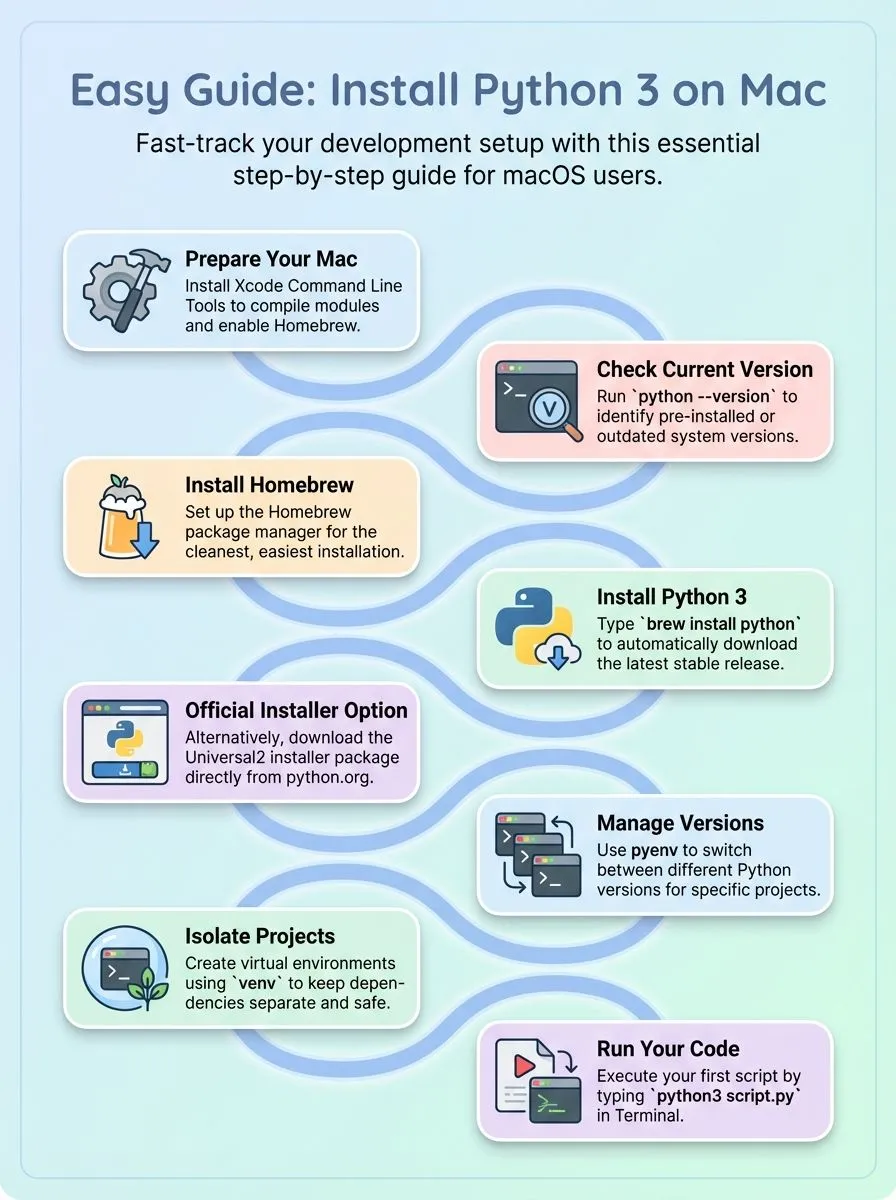
- Apple stopped including Python 3 with macOS 12.3, requiring manual installation of Python 3.14.3 for modern development projects.
- Homebrew package manager provides the recommended installation method, offering better control and easier management of multiple Python versions.
- Installing Xcode Command Line Tools first ensures proper Python module compilation and Homebrew functionality on Mac systems.
- Virtual environments using the venv module keep project dependencies separate, preventing conflicts between different Python applications and system installations.
- Users can verify successful Python installation by running “python3 –version” in Terminal to confirm the latest version works properly.
Preparing Your Mac for Python Installation
Getting your Mac ready for Python installation requires a few simple steps that ensure everything runs smoothly. Mac computers come with some tools already installed, but checking what’s there and adding missing pieces makes the whole process much easier.
How do I install Xcode Command Line Tools on my Mac?
Installing Xcode Command Line Tools is a must for Python development on Mac. These tools help compile Python modules and make Homebrew work properly.
- Open the Terminal app on your Mac by pressing Command + Space and typing “Terminal.”
- Type “xcode-select –install” in the terminal window and press Enter to start the installation.
- Click “Install” when the popup window appears asking about Command Line Tools installation.
- Accept the license agreement by clicking “Agree” to continue with the setup process.
- Wait for the download and installation to complete, which usually takes 10-15 minutes depending on your internet speed.
- Test the installation by typing “xcode-select -p” in Terminal to verify the tools are installed correctly.
- Check that gcc is working by typing “gcc –version” to see compiler information displayed.
- Restart your Terminal app to make sure all new command line tools load properly for future use.
How can I check if Python is already installed on my Mac?
Most Mac computers come with Python already installed, but it might be an older version. Checking the current Python version helps users know if they need to install a newer release.
- Open the Terminal app – Find Terminal in Applications folder under Utilities, or press Command + Space and type “Terminal” to launch it quickly.
- Run the python –version command – Type this command and press Enter to see if Python 2.7.18 appears, which was released April 20, 2020.
- Try the python3 –version command – This shows if Python 3.x is installed on your Mac, which is better for modern programming projects.
- Check for pre-installed Python 2.7 – Older macOS versions came with Python 2.7.x, but this version is now outdated and no longer supported.
- Compare with latest stable version – The system version may differ from Python 3.14.3, released February 3, 2026, so users might need an upgrade.
- Test both commands – Some Macs have both Python 2 and Python 3 installed, so running both commands shows all available versions.
- Note the exact version number – Write down the version numbers to verify compatibility with modern libraries and development tools.
- Understand pre-installed limitations – The built-in Python version might cause issues with newer packages and programming frameworks.
Once users know their current Python version, they can decide which installation method works best for their needs.
Installing Python Using Homebrew (Recommended)
Homebrew stands as the most popular package manager for macOS that makes installing Python simple and clean. This method gives users better control over their Python environment and makes managing multiple versions much easier than other approaches.
How do I install Homebrew on MacOS?
Installing Homebrew transforms your Mac into a powerful development machine. This package manager for macOS makes installing and managing Python and other developer tools incredibly simple.
- Open Terminal by pressing Command + Space, typing “Terminal,” and hitting Enter to access the command-line interface on your Mac.
- Copy and paste this installation command into Terminal:
/bin/bash -c "$(curl -fsSL https://raw.githubusercontent.com/Homebrew/install/HEAD/install.sh)"and press Enter. - Enter your Mac password when prompted, as the installer needs administrator privileges to install packages and configure system directories.
- Wait for the installation to complete, which typically takes 5-10 minutes depending on your internet connection and Mac’s processing speed.
- Follow the on-screen instructions to add Homebrew to your PATH by running the suggested commands that appear after installation finishes.
- Verify the installation worked correctly by typing
brew --versionin Terminal to check if the package manager responds with version information. - Run
brew doctorto ensure everything is configured properly and fix any potential issues that might affect future package installations. - Update Homebrew to the latest version by running
brew updateto access the most current formulas for Python releases and other software.
How do I install Python using Homebrew on Mac?Homebrew makes installing Python 3 on Mac simple and clean. This method gives users the latest stable Python releases without messing with the system’s built-in version.
- Open Terminal on the Mac and type
brew install pythonto start the installation process. This command downloads and installs the newest stable Python version available through Homebrew’s package manager. - Wait for Homebrew to download Python 3.14.3 or the current stable release from February 3, 2026. The installation process automatically handles all dependencies required for the programming language to work properly.
- Homebrew installs Python with Universal2 architecture for macOS 64-bit systems by default. This setup works perfectly on both Intel and Apple Silicon Macs without extra configuration steps.
- Check the installation by typing
python3 --versionin the terminal window. The command shows which version of Python now runs on the Mac system. - Homebrew keeps Python installations separate from the system Python that comes with macOS. This isolation prevents conflicts between different projects and protects the operating system’s built-in tools.
- Install additional packages using
pip3 install package-namecommand in the terminal. The pip package manager comes bundled with every Homebrew Python installation automatically. - Upgrade Python versions easily by running
brew upgrade pythonwhen new releases become available. Homebrew supports seamless upgrades to versions like Python 3.13.12 from February 3, 2026. - Access Python by typing
python3in the terminal rather than justpython. This ensures the system uses the Homebrew version instead of the older system Python.
Installing Python Using the Official Installer
Python developers often choose the official installer from python.org for a straightforward installation process. This method gives users complete control over their python installation and works perfectly across all versions of macos, making it an excellent choice for those who prefer downloading directly from the python software foundation.
Where can I download the official Python installer for Mac?
The python.org website serves as the primary source for official Python downloads. Users can access the latest stable version, Python 3.14.3, which comes as a macOS 64-bit Universal2 installer package.
This installer works seamlessly across different Mac architectures, making it perfect for both Intel and Apple Silicon machines.
The downloads page offers multiple options for mac operating systems users. Legacy versions like Python 2.7.18 from April 20, 2020 remain available for developers working with older projects.
Pre-release versions such as Python 3.15.0a6 scheduled for February 11, 2026 provide early access for testing purposes. Each release includes clear date stamps, helping users choose between the most recent updates or proven stable builds for their development environment needs.
How do I run the Python installer and set up Python on Mac?
Running the official Python installer creates a clean setup for python programming language development. The installer file downloads as a standard macOS .pkg file that users can launch with a simple double-click.
- Double-click the downloaded .pkg installer file – The macOS system opens the Python installer automatically and displays the welcome screen for setup.
- Click “Continue” through the introduction screens – The installer shows license agreements and installation details that users need to review before proceeding.
- Select the installation destination on the Mac – Choose the main hard drive or specify a custom location where Python 3.x directory will be created.
- Choose installation type and additional components – The installer provides options for adding pip package manager and IDLE development environment to the setup.
- Enter administrator password when prompted – macOS requires admin credentials to install software and update system environment variables for the new Python version.
- Wait for the installation process to complete – The installer copies files and configures the python on your mac system automatically without additional user input.
- Verify the installation in Terminal application – Open Terminal and type “python3 –version” to confirm the latest version of python installed correctly.
- Test pip functionality for package management – Run “pip3 –version” in Terminal to ensure the package manager works properly for installing additional libraries.
The installation creates an isolated Python 3.x directory separate from the system’s outdated python version, making virtual environment setup the next logical step.
Managing Multiple Python Versions
Many developers work with different Python projects that require specific Python versions. Installing pyenv gives users the power to switch between multiple python versions effortlessly, making it simple to handle various projects without conflicts.
How can I use pyenv to switch between Python versions on Mac?
Switching between Python versions becomes simple with pyenv on Mac. This tool helps avoid conflicts with the default macOS Python 2.7.18 that comes pre-installed.
- Install pyenv using Homebrew package manager – Run the command
brew install pyenvin the terminal to get this version management tool on your Mac system. - Add pyenv to your shell configuration file – Open your terminal and add
export PATH="$HOME/.pyenv/bin:$PATH"to your .bash_profile or .zshrc file. - Reload your shell settings – Type
source ~/.bash_profileor restart your terminal to make pyenv commands work properly in your system. - Check available Python versions – Use
pyenv install --listto see all Python versions you can install, including Python 3.14.3 and Python 3.13.12. - Install your desired Python version – Run
pyenv install 3.13.0to install Python 3.13.0 released on October 7, 2024, or any other version you need. - Set a global Python version – Use
pyenv global 3.12.10to make Python 3.12.10 your default version across all projects on your Mac. - Switch versions for specific projects – Navigate to your project directory and run
pyenv local 3.15.0a6to use Python 3.15.0a6 for testing new features. - Verify your current Python version – Type
python --versionto confirm which Python version is active in your current working directory. - Install Universal2 builds for compatibility – Choose Universal2 versions when installing to ensure your Python works on both Intel and Apple Silicon Macs.
Setting Up a Virtual Environment
Virtual environments create isolated spaces for Python projects on Mac computers, keeping dependencies separate and preventing conflicts between different applications.
*Ready to master Python environments and take your coding skills to the next level? Keep reading to discover the simple steps that will transform how you manage your Python projects.*
How do I create and activate a Python virtual environment on Mac?
Creating a Python virtual environment on Mac keeps project dependencies separate from the system Python installation. The venv module, included since Python 3.6.0 on December 23, 2016, makes this process simple and effective.
- Open Terminal from Applications folder or press Command + Space and type “terminal” to launch the command line interface for working with python on macos.
- Navigate to your project directory using the cd command, or create a new folder where you want to store your python script files and dependencies.
- Run the command
python3 -m venv envto create a virtual environment using Python 3.x, which generates a self-contained directory structure for your project. - Activate the environment with
source env/bin/activatein the terminal, which changes your command prompt to show the active environment name in parentheses. - Install packages using pip within the activated environment, ensuring all dependencies stay separate from your mac’s system Python 2.7.18 installation.
- Create and run a python script within this isolated environment to test that everything works correctly with your new setup.
- Use the
deactivatecommand to exit the virtual environment and return to your system’s default Python configuration when finished working. - Reactivate the same environment anytime by running
source env/bin/activatefrom your project directory to continue development with the same dependencies.
Running Your First Python Script on Mac
Creating and running your first Python script on Mac marks an exciting milestone in your programming journey. The terminal becomes your command center where you can execute Python files and see your code come to life with simple commands that transform ideas into working programs.
How do I run my first Python script on MacOS?
Running your first Python script on Mac marks an exciting milestone in your programming journey. The process involves creating a simple script file and executing it through the terminal or an integrated development environment.
- Create a new file using any text editor and save it with a .py extension, such as
script.pyon your desktop or preferred directory. - Open the Computer terminal application by pressing Command + Space, typing “Terminal,” and hitting Enter to access the command line interface.
- Navigate to the folder containing your Python file using the
cdcommand followed by the directory path where you saved the script. - Execute your script by typing
python3 script.pyin the terminal, ensuring you use Python 3 instead of the older Python version that comes pre-installed. - Verify successful execution by checking the output displayed in the terminal window, which should show any print statements or results from your code.
- Launch IDLE or another IDE bundled with the Python installer as an alternative method to open and run scripts with a graphical interface.
- Confirm your virtual environment is activated if you’re working within one, as this ensures proper package management and dependency handling.
- Test different Python versions by specifying the version number in your command, such as
python3.9orpython3.14.3depending on your installation. - Save multiple script versions and experiment with various Python programming concepts to build confidence and expand your coding skills.
With your first script successfully running, you’re ready to explore more advanced Python programming concepts and build exciting projects.
Conclusion
Python installation on Mac just became simple with these proven methods. Users can choose between Homebrew for advanced control or the official installer for quick setup. Virtual environments keep projects clean and organized.
Mac owners now have the tools to start coding Python scripts right away. Creative professionals can explore Django web development, data analysis, or automation projects with their new Python setup.
For those looking to install Python on a Linux system, check out our guide here.
FAQs
1. Does Mac come with Python pre-installed?
Yes, OS X comes with Python 2 already installed. However, you need to install Python 3 separately since Apple Inc. includes an older version by default.
2. What is the easiest way to install Python 3 on Mac?
Download the package from the Python official website at python.org. This method requires no need to install or configure anything else to use Python after setup.
3. Can I use Homebrew package manager to install Python on a Mac?
Yes, Homebrew offers another simple way to install the latest Python version. Run the following command in Terminal: brew install python. This approach also handles library management automatically.
4. Do I need to configure anything else to use Python 3.9.6?
No configuration is needed after installation from the official source. The installer sets up everything required, including Pip package manager for installing additional packages.
5. How do I check if Python installation worked correctly?
Open Terminal and type “python3” to verify your new version of Python runs properly. You can also install and configure packages without issues once installation completes successfully.
6. Should I choose to install Python through Visual Studio or other development tools?
While Visual Studio supports Python programming, installing directly from the official Python website gives you better control. This approach works well with Django web framework, GNU Compiler Collection, and other development tools you might use later.