

Python developers face one common challenge: figuring out how to install a package correctly. Many creators struggle with package installation, missing out on powerful tools that could boost their projects.
The Python Packaging User Guide shows that proper package management forms the backbone of successful Python development. This guide will walk through every step needed to install packages smoothly and efficiently.
Alex Herrick brings over ten years of industry experience in web development and custom design solutions. His expertise in building functional systems helps creators understand the technical steps behind package installation.
This guide covers everything from basic pip commands to advanced virtual environment setups. Ready to master Python package installation?
Key Takeaways
- Python package installation requires pip commands like
python3 -m pip install SomeProjectto download libraries from PyPI repository. - Virtual environments prevent package conflicts by isolating project dependencies using
python3 -m venv tutorial_envand activation commands. - Users can install specific package versions with
python3 -m pip install 'SomeProject==1.4'for compatibility control. - Package management includes upgrading with
--upgradeflag and uninstalling withpip uninstallcommands for system maintenance. - Alternative installation methods support Git repositories, prerelease versions, and extra dependencies for advanced development workflows.
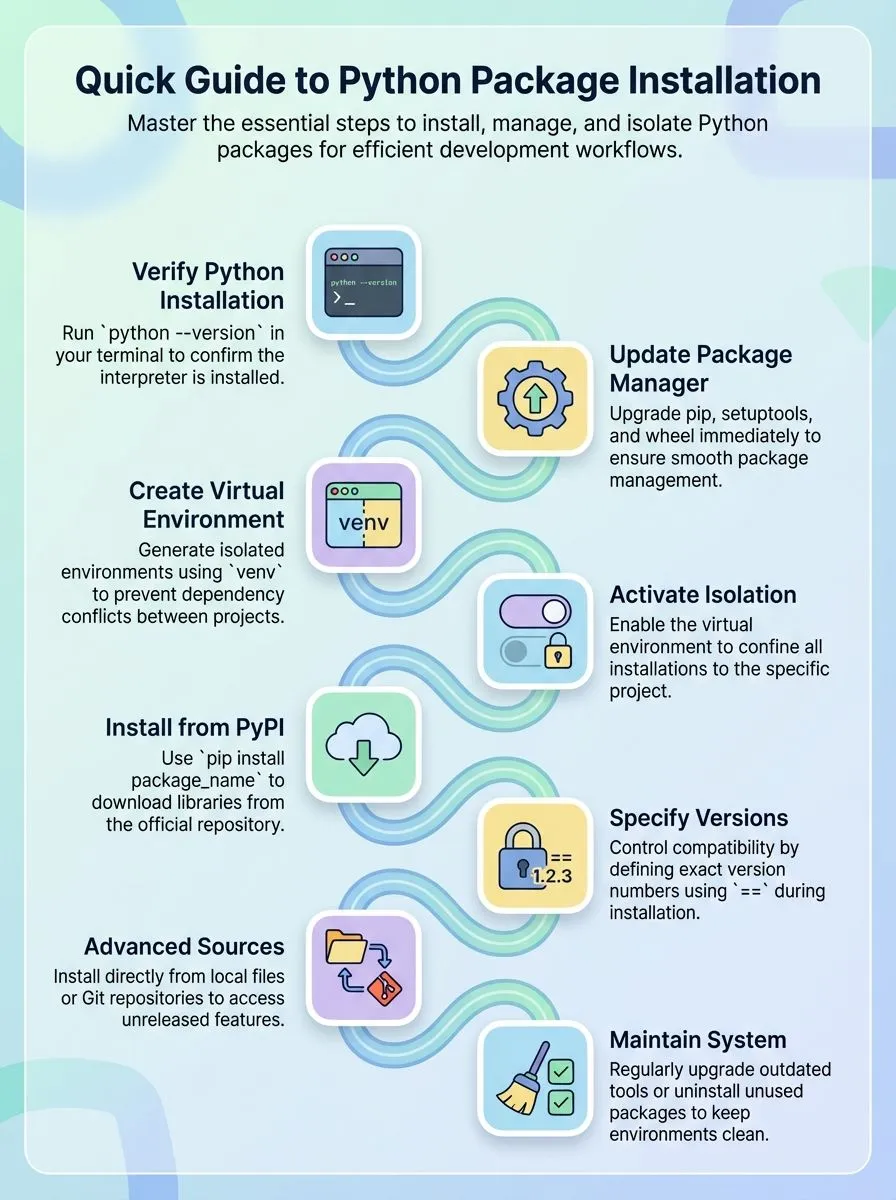
Preparing Your Environment

Setting up a proper Python environment forms the foundation for successful package installation. This preparation step saves time and prevents common errors that frustrate developers during their coding journey.
How do I check if Python is installed?Python installation verification helps users confirm their system setup before installing new packages. Checking the Python version ensures the interpreter works correctly on your operating system.
- Open your command line interface – Windows users access Command Prompt or PowerShell, while Mac and Linux users open Terminal from their applications folder.
- Run the version check command for Windows systems – Type
py --versionin the command prompt to see if Python exists on your computer. - Execute the Unix version command on Mac or Linux – Enter
python3 --versionin the terminal to verify Python 3.x installation on your system. - Look for version output like Python 3.6.3 – A successful check displays the exact Python version number currently installed on your machine.
- Install Python if no version appears – Download the latest Python version from the official website when the command returns an error message.
- Use python3 specifically on Linux distributions – Linux users must type python3 instead of python to access Python 3.x functionality and avoid conflicts.
- Verify the command runs in a proper shell environment – Errors often occur when commands execute outside terminal or command prompt interfaces.
- Check your path environment variable if commands fail – Python installation might exist but lack proper system path configuration for command line access.
How can I verify and update pip?
Checking pip status and keeping it current ensures smooth package installations across different Python environments. Users can verify their pip installation and upgrade it using simple command-line instructions.
- Check pip installation on Unix systems and macOS by running
python3 -m pip --versionin the terminal to display the current version information. - Verify pip on Windows machines using the command
py -m pip --versionto confirm the package manager exists and view version details. - Install pip using the ensurepip module if the package manager is missing from the Python installation on the system.
- Download and run the get-pip.py script as an alternative method to install pip when ensurepip is unavailable or fails.
- Update pip, setuptools, and wheel on Unix/macOS systems with
python3 -m pip install --upgrade pip setuptools wheelfor optimal performance. - Upgrade pip components on Windows using
py -m pip install --upgrade pip setuptools wheelto maintain the latest package manager features. - Exercise caution when using get-pip.py on operating system-managed Python installations to avoid conflicts with system packages.
- Install pip in specific locations using
python get-pip.py --prefix=/usr/local/to control where the package manager files are placed. - Verify the upgrade completed successfully by running the version check command again to confirm the new pip version number.
Creating and managing virtual environments becomes the next essential skill for isolated package installations.
Installing a Package Using pip
Installing packages with pip forms the backbone of Python development. This powerful tool connects developers to thousands of libraries stored in the Python Package Index, making it simple to add new features to any project.
How do I install a package from PyPI?
PyPI serves as Python’s main package repository where developers find thousands of useful libraries. Joshua Correos and his team at Web Design Booth regularly use this method to install packages for their digital marketing and cybersecurity projects.
- Open your command prompt or terminal and type
python3 -m pip install 'SomeProject'to install the latest version of any package from the official repository. - Replace ‘SomeProject’ with the actual package name you want to install, such as
python3 -m pip install requestsfor the popular HTTP library. - Wait for pip to download and install the package along with all required dependencies automatically from the package database.
- Check the installation worked by importing the library in your Python interpreter using
import package_namecommand. - Use the
--userflag likepython3 -m pip install --user SomeProjectto install packages only for your current user account without admin permissions. - Install multiple packages at once by listing them with spaces:
python3 -m pip install requests numpy pandassaves time for bulk installations. - Verify successful installation by running
pip listto see all installed packages and their version numbers in your current environment. - Install packages inside a virtual environment to keep your projects organized and avoid conflicts between different package versions across projects.
How can I install a package from a local source?
While PyPI offers millions of packages, developers often need to install packages from their local machines. Local installations prove essential when working with custom code, testing unreleased versions, or installing packages that aren’t available online.
- Navigate to the directory containing your local package files using the command line or terminal application.
- Install from a local source tree in development mode using
python3 -m pip install -efor editable installations that reflect code changes immediately. - Install from a local source tree normally with
python3 -m pip installwhen you want a standard installation without live updates. - Install from a local archive file using
python3 -m pip install ./downloads/SomeProject-1.0.4.tar.gzto install compressed package files directly. - Use relative paths for local installations to simplify commands and avoid typing full directory paths every time.
- Install without PyPI check using
python3 -m pip install --no-index --find-links=file:///local/dir/SomeProjectto prevent online repository searches. - Start a helper app serving the simple repo API with
./s3helper --port=7777for local or cloud file sources when needed. - Install using the helper service with
python -m pip install --extra-index-url http://localhost:7777 SomeProjectafter starting the local server. - Verify the installation completed successfully by importing the package in Python or checking the installed packages list with pip.
How do I install a specific package version?
Python developers often need to install exact versions of packages for their projects. Version control ensures compatibility and prevents conflicts between different software components.
- Specify the exact version using pip with version number – Use
python3 -m pip install 'SomeProject==1.4'to install version 1.4 exactly. This method guarantees the specific version gets installed on the system. - Install packages within a version range for flexibility – Execute
python3 -m pip install 'SomeProject>=1,<2'to install any version between 1.0 and 2.0. This approach allows automatic updates within safe boundaries. - Use compatible release specifier for patch updates – Run
python3 -m pip install 'SomeProject~=1.4.2'to install version 1.4.2 or newer patch releases. This feature works with setuptools v8.0 and pip v6.0 or later. - Create requirements files for project dependency management – Save package versions in requirements.txt and install with
python3 -m pip install -r requirements.txt. This method helps maintain consistent environments across different machines. - Install pre-release versions for testing purposes – Use
python3 -m pip install --pre SomeProjectto get alpha or beta versions. Pre-releases help developers test new features before official releases. - Check installed package versions before upgrading – Run
pip listorpip show package-nameto verify current versions. This step prevents accidental downgrades or conflicts with existing installations. - Install from local source with specific version control – Use
pip install /path/to/packagefor local installations orpip install git+https://github.com/user/repo@v1.4for version control systems. Local installations work well for custom or modified packages. - Combine version specifiers with virtual environments – Create isolated environments using
python3 -m venv myenvbefore installing specific versions. Virtual environments prevent system-wide conflicts and maintain project independence.
Managing Packages
Package management keeps Python projects organized and running smoothly. Users can upgrade existing packages, remove unused ones, and maintain clean development environments with simple pip commands.
How do I upgrade an existing package?
Upgrading packages keeps your Python tools fresh with new features and security fixes. The process takes just one simple command and works for any package in your system.
- Run the basic upgrade command – Type
python3 -m pip install --upgrade SomeProjectin your terminal, replacing “SomeProject” with your actual package name. - Check which packages need updates first – Use
pip list --outdatedto see all packages that have newer versions available before upgrading. - Upgrade pip itself regularly – Execute
python3 -m pip install --upgrade pip setuptools wheelon Unix/macOS orpy -m pip install --upgrade pip setuptools wheelon Windows. - Handle PATH warnings properly – Check your user base binary directory with
python -m site --user-baseon Linux/macOS, then append ‘/bin’ to the result. - Update Windows PATH settings – Run
py -m site --user-siteand replace ‘site-packages’ with ‘Scripts’ to find your binary directory location. - Force latest version installation – Add the
--upgradeflag to ensure pip installs the newest available version, even if a different version exists. - Edit system PATH files – Modify
~/.profileon Unix systems or use Control Panel on Windows to update PATH variables for new script locations. - Upgrade dependent packages together – Use
pip install --upgrade package_nameto update both the main package and its dependencies automatically.
How can I uninstall a package?
Removing packages helps clean up the system and fix version conflicts. Python users can uninstall packages quickly with simple commands.
- Open the command line – Access the terminal on Unix systems or command prompt on Windows to start the removal process.
- Run the basic uninstall command – Type
python3 -m pip uninstall SomeProjectto remove the target package from the current environment. - Confirm the removal – Press ‘y’ when prompted to verify that the correct package will be deleted from the system.
- Use the bypass flag for automation – Add
--yesto skip confirmation prompts:python3 -m pip uninstall --yes SomeProjectfor faster execution. - Check file system permissions – Some installations require sudo access on Ubuntu systems if the package was installed system-wide.
- Verify the target environment – Confirm the active virtual environment before removing packages to avoid deleting critical system components.
- Remove from specific locations – Uninstallation targets the user directory or virtual environment’s package folder where files are stored.
- Handle dependency conflicts – Package removal helps resolve versioning issues but does not automatically remove related dependencies unless specified.
- Clean up manually if needed – Check the directory structure after removal to ensure all package files were properly deleted from the filesystem.
Using Virtual Environments
Virtual environments solve one of Python’s biggest headaches — package conflicts that can break your projects. Creating virtual environment lets developers install different package versions for each project, keeping everything clean and organized.
How do I create and activate a virtual environment?
Creating virtual environment‘s helps developers keep Python projects separate and clean. This practice prevents package conflicts and makes project management much easier.
- Check your Python version first – Python 3.3 and newer versions include venv by default, making virtual environment creation simple and straightforward.
- Open your terminal or command prompt – Navigate to the directory where you want to create your new project folder for better organization.
- Create a virtual environment on Unix or macOS systems – Type
python3 -m venv tutorial_envto generate a new isolated Python environment with all necessary files. - Create a virtual environment on Windows systems – Use the command
py -m venv tutorial_envto set up your isolated development space effectively. - Activate the environment on Unix or macOS – Run
source tutorial_env/bin/activateto enable your virtual environment and start using it immediately. - Activate the environment on Windows – Execute
tutorial_envScriptsactivatedirectly without the source command to begin working in your isolated space. - Verify activation success – Your command prompt will show the environment name in parentheses, confirming the virtual environment is now active and ready.
- Install packages safely inside the environment – Any package you install now stays contained within this virtual environment, protecting your system Python installation.
- Consider using virtualenv for older Python versions – This separate tool supports both Python 2.7 and 3.3+ while automatically installing pip, setuptools, and wheel components.
How do I install packages inside a virtual environment?
Installing packages inside a virtual environment keeps projects separate and clean. Each virtual environment maintains its own site-packages directory for complete isolation.
- Activate the virtual environment first – Run the activation script for your operating system before installing any package.
- Use pip as usual after activation – Type
python3 -m pip install 'SomeProject'to install packages normally inside the environment. - Install from requirements files – Run
python3 -m pip install -r requirements.txtto install multiple packages at once from a list. - Check package installation location – Packages install only in the virtual environment’s directory, not the global Python installation.
- Ignore the user flag – The
--userflag gets ignored inside virtual environments since installations are already isolated from other projects. - Install specific versions safely – Use version numbers without worrying about conflicts with other projects on the same system.
- Upgrade packages within the environment – Run pip upgrade commands to update packages without affecting global Python installations.
- Uninstall packages cleanly – Remove packages using pip uninstall commands, and they disappear only from this environment.
- Deactivate when finished – Type
deactivatecommand to exit the virtual environment and return to the global Python setup.
Additional Installation Methods
Python developers often need packages from sources beyond the standard package repository. These alternative methods open doors to cutting-edge features, private repositories, and specialized development workflows that can transform creative projects.
How can I install packages from version control systems?
Version control systems offer direct access to the latest source code and development branches. Tech enthusiasts can pull packages straight from repositories like Git, Mercurial, or Subversion.
- Install directly from Git repositories using the git+ prefix in your pip command. Use
python3 -m pip install git+https://github.com/user/repo.gitto grab the latest version from the main branch. - Target specific branches or tags by adding the branch name after an @ symbol. The command
python3 -m pip install -e SomeProject@git+https://git.repo/some_pkg.git@featureinstalls from a feature branch in editable mode. - Install from Mercurial repositories using the hg+ protocol identifier. Execute
python3 -m pip install -e SomeProject@hg+https://hg.repo/some_pkgto install packages from Mercurial source control. - Pull packages from Subversion repositories with the svn:// protocol. Run
python3 -m pip install -e SomeProject@svn://svn.repo/some_pkg/trunk/to install from SVN trunk directories. - Use editable mode installations for active development work. The
-eflag allows automatic reloading of code changes without reinstalling the entire package. - Replace
python3withpyon Windows platforms for compatibility. Windows users should usepy -m pip installinstead ofpython3 -m pip installfor proper execution. - Specify full VCS URLs for precise source control targeting. Complete repository paths ensure the installer locates the exact source package location within the version control system.
- Leverage VCS installations for collaborative workflows and continuous integration. Development teams can sync the latest changes directly from shared repositories without waiting for official releases.
How do I install prerelease or extra dependencies?
Python developers often need cutting-edge features or special functionality that standard package installations don’t provide. Installing prerelease versions and extra dependencies opens doors to advanced capabilities and testing opportunities.
- Install prerelease versions using the –pre flag with python3 -m pip install –pre SomeProject to access development features and upcoming fixes before official releases.
- Add extra dependencies by placing them in square brackets like python3 -m pip install ‘SomePackage[PDF]’ to enable optional functionality such as PDF support or database connections.
- Combine version specifications with extras using python3 -m pip install ‘SomePackage[PDF]==3.0’ to get specific package versions while maintaining extended capabilities.
- Enable editable mode installations with extras through python3 -m pip install -e ‘.[PDF]’ for local development projects that need optional dependencies.
- Target multiple extras simultaneously by separating them with commas inside the brackets to install several optional features at once for comprehensive functionality.
- Check package documentation to discover available extras since each binary package defines different optional dependencies in its metadata for extended features.
- Use prerelease installations for testing new features before they become stable releases, helping developers stay ahead of compatibility issues.
- Install extras within virtual environments to maintain clean project dependencies and avoid conflicts between different projects requiring various optional packages.
Conclusion
Python package installation opens doors to endless creative possibilities. Tech enthusiasts can transform their projects with just a few simple commands. Virtual environments keep projects organized while pip handles the heavy lifting.
Creative professionals gain access to powerful tools that were once expensive or hard to find. These skills help YouTubers, developers, and digital artists build amazing applications without breaking the bank.
For more detailed instructions on how to install a specific version of a package, click here.
FAQs
1. What is the easiest way to use to install a Python package?
The pip command is the standard tool for installing the package in Python. You can run “pip install package_name” in your terminal or command prompt to get any single package you need.
2. How do I install a specific version of a package?
You can specify the exact version by typing “pip install package_name==1.2.3” where 1.2.3 is your desired software versioning number. This helps maintain backward compatibility with your existing code.
3. Can I install packages from local files on my computer?
Yes, installing from local works well for custom packages. You can use “pip install /path/to/your/package” where the path points to your directory computing location that contains the package files.
4. What happens when I install packages in a virtual environment’s space?
Virtual environments keep your packages separate from your main Python installation. The virtual environment’s directory computing system stores all package files the package needs without affecting your main system setup.
5. How do I install packages for Jupyter Notebook or IPython?
You can install packages directly in jupyter notebook by typing “!pip install package_name” in a cell. This method works great for Project Jupyter users who need quick package installation.
6. What should I do if I get file system permissions errors during installation?
File system permissions problems happen when your user computing account lacks access rights to certain directories. You can try using “pip install –user package_name” to install in your personal directory, or contact your system administrator if you’re on a Unix filesystem with restricted kernel operating system access.