

Python developers often struggle with package compatibility issues that break their code, but using pip install specific version commands can save hours of debugging time. Many programmers think they must always use the latest package versions, yet this approach frequently creates conflicts in existing projects.
Smart developers know that installing specific package versions prevents compatibility headaches and keeps projects running smoothly.
Alex Herrick brings over ten years of web development experience to this guide, having solved countless Python package conflicts while building custom WordPress themes and responsive designs.
His practical approach helps developers manage Python dependencies without the usual frustration. This guide reveals the exact steps to control your Python environment like a pro.
Key Takeaways
- Use
pip install ==command to install exact package versions and prevent compatibility issues in Python projects. - Check available package versions with
pip index versionsand verify installations usingpip showcommands. - Virtual environments create isolated spaces for different projects, preventing version conflicts between multiple Python applications.
- Tools like pipreqs generate accurate requirements.txt files while conda and pipenv offer comprehensive version control solutions.
- Installing specific package versions saves debugging time and ensures consistent performance across development, testing, and production environments.
Why should I install a specific version of a Python package?

Installing a specific version of a Python package becomes critical for several real-world scenarios that developers face daily. Large codebases may be incompatible with the latest package updates, causing applications to break or behave unexpectedly.
Legacy code still in production may require older versions for stability, ensuring that existing systems continue to function without disruption. Joshua Correos from Web Design Booth has encountered this challenge multiple times while maintaining client websites that depend on specific library versions for their core functionality.
The latest package version may not be compatible with the current Python version in use, creating conflicts that can halt development progress. Ensuring compatibility across development, testing, and production environments often requires locking package versions to maintain consistency.
Teams need to guarantee that their Python projects work the same way across different machines and deployment stages. This approach prevents the frustrating “it works on my machine” problem that can derail project timelines and cause unnecessary debugging sessions.
Finding the right approach to manage these version requirements starts with understanding how to locate and install specific package versions.
Steps to install a specific version using pip
Installing a specific package version with pip requires just a few simple commands that any developer can master. These essential steps will help users control their Python environment and avoid compatibility issues that often arise with automatic updates.
How do I find the available versions of a Python package?
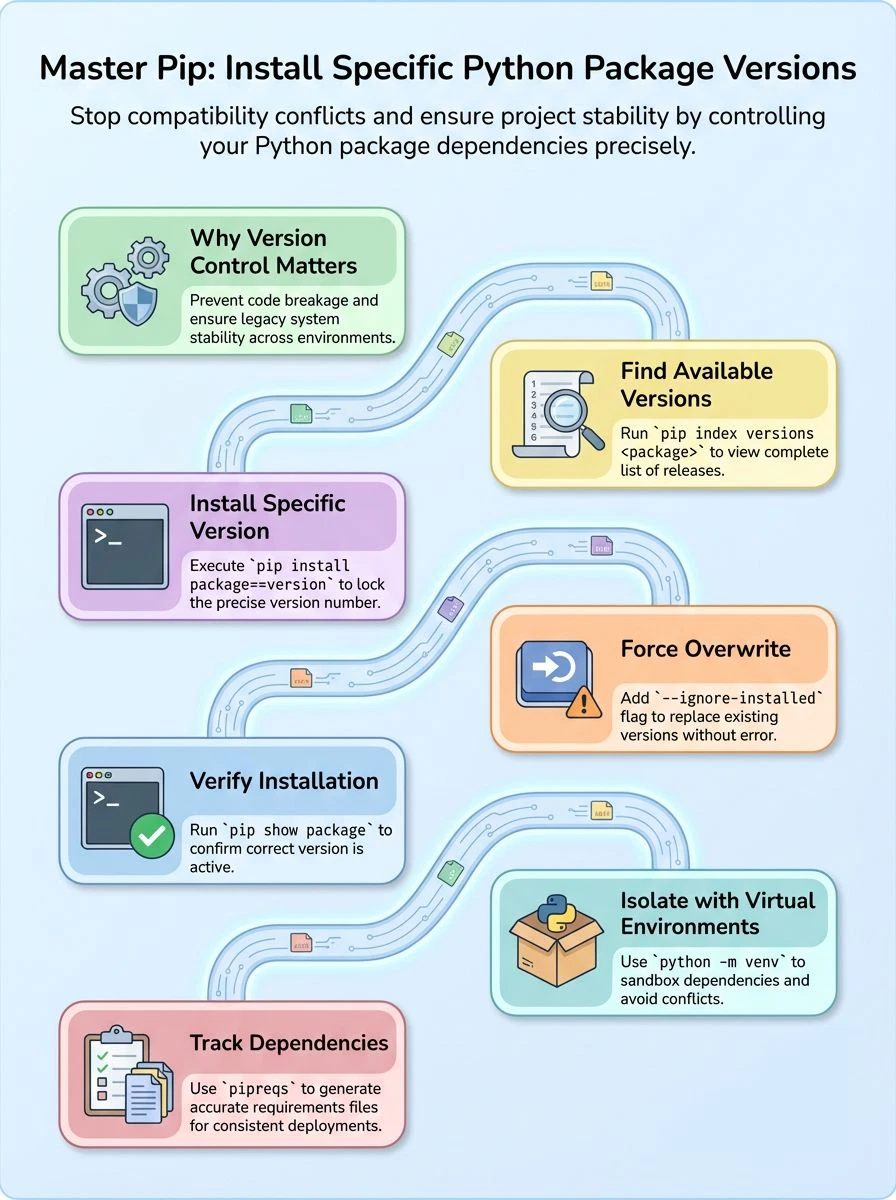
Finding available versions of a Python package takes just one command. Developers can use `pip index versions ` to see all versions that exist for any package. This command connects to the Python Package Index and pulls up a complete list.
For example, running `pip index versions pandas` shows available versions, including the most recent version 2.0.0. The command line displays versions from newest to oldest, making it easy to pick the right one.
Knowledge of available package versions gives developers the power to choose exactly what their project needs.
Alex Herrick from Web Design Booth often uses this approach when working with clients who need specific python package versions for their projects. The pip command works across different operating systems, including Linux distributions.
Developers can also check PyPI directly through their web browser to see version numbers and release dates. This method helps when planning upgrades or working with older versions of python that require specific package versions with pip compatibility.
What is the pip command to install a specific package version?
The command format to install a specific version follows a simple pattern: `pip install ==`. This syntax tells pip to download and install the exact version number a user specifies.
For example, to install version 1.3.4 of Pandas, developers use: `pip install pandas==1.3.4`. The double equals sign acts as the key operator that locks the installation to that precise version.
Users can overwrite any existing version by adding the `–ignore-installed` flag to their command. This approach proves useful when downgrading or switching between different package versions for testing purposes.
The complete overwrite command looks like this: `pip install == –ignore-installed`. For Pandas version 2.0.0, the full command becomes: `pip install pandas==2.0.0 –ignore-installed`.
This method ensures the package manager installs the specified version regardless of what currently exists in the Python environment.
How can I verify the installed package version?
Users need to confirm they installed the right version of a package. The `pip show ` command reveals this information instantly. For example, running `pip show pandas` displays version 1.5.3 along with other details.
This verification step ensures the specific version of a package matches expectations after installation.
Checking the installed version prevents future problems with code compatibility. The command shows dependencies too, such as numpy, python-dateutil, and pytz for Pandas. Developers can confirm they have Pandas 1.3.4 after running the specific install command.
This simple check saves time and catches version mismatches before they cause issues in projects.
Tips for managing package versions efficiently
Managing package versions becomes much easier when you use the right strategies and tools to keep your Python projects organized and conflict-free.
How can I use virtual environments to manage package versions?
Virtual environments create separate spaces for each Python project. These isolated environments prevent version conflicts between different projects. Each virtual environment holds its own set of packages and dependencies.
Developers can install specific versions of packages without affecting other projects. Python’s built-in venv module makes creating these environments easy.
Creating a virtual environment takes just one command: `python -m venv myproject`. This command creates a new directory with all necessary files. Activating the environment isolates package installations from the system-wide Python setup.
Users can install multiple python packages with different versions across various projects. The virtual environment keeps each project’s requirements separate and organized. Deactivating returns to the global Python environment, leaving project-specific packages untouched.
What tools help with tracking and updating package versions?
Python developers rely on several powerful tools to track and update package versions across projects. Python’s `pipreqs` module stands out as a game-changer for generating accurate `requirements.txt` files from existing code.
This tool scans project directories and creates dependency lists with exact version numbers. Joshua Correos frequently uses pipreqs in his digital marketing projects to ensure consistent Python environments across different servers.
The module eliminates guesswork and captures only the packages actually used in code.
Virtual environment managers like conda and pipenv offer comprehensive solutions for version control. These tools create isolated spaces where specific package versions live without conflicts.
Pip allows users to install packages with version constraints using operators like greater than or equal. Package managers can specify a range of versions to maintain compatibility while receiving security updates.
Teams can use the package manager to uninstall outdated dependencies and install fresh versions. This approach enables easy transfer of dependencies to other machines or environments, making collaboration seamless across development teams.
Conclusion
Installing a specific version of a python package using pip becomes simple once developers learn the basic commands. Tech enthusiasts can now manage their Python projects with confidence, knowing they control exactly which package versions their code uses.
Virtual environments make this process even smoother by keeping different project requirements separate and organized.
Joshua Correos and the Web Design Booth team understand that version control separates successful developers from those who struggle with compatibility issues. Creative professionals who master these pip commands will save countless hours troubleshooting broken dependencies and can focus on building amazing projects instead.
FAQs
1. Why would you want to install a specific version of a Python package using pip?
You want to install a specific version when your project needs an exact package version for compatibility. The latest version might break your code or miss features you need.
2. How do you use pip to install a specific version of a package?
Type “pip install” followed by the version number you want. The command looks like this: pip install package_name==1.2.3 where 1.2.3 is your target version.
3. Can you check what version is available before installing a Python package using pip?
Yes, run “pip show package_name” to see the installed version. You can also use “pip index versions package_name” to list all respective versions that pip can install.
4. Does pip install work the same way for Python 3.4 and newer versions?
Pip works similarly across Python versions, but older systems might need “pip3” instead of “pip”. Most modern setups with Python 3.4 and above use “pip” as the standard package manager command.
5. What happens when you want to install a specific pip version for tools like IPython or Project Jupyter?
The same rules apply when you package using pip for these tools. Type the tool name followed by the version number, like “pip install ipython==7.16.1” to get that exact release installed using pip.