

Many Python developers struggle with reading and writing files correctly. The open() function python serves as a built-in tool that handles all file operations in the Python programming language.
This guide breaks down the syntax, parameters, and practical examples to help anyone master file handling with confidence. File operations become simple once you know the basics.
Key Takeaways
- Python’s open() function uses eight parameters, with file and mode being the most commonly used by developers daily.
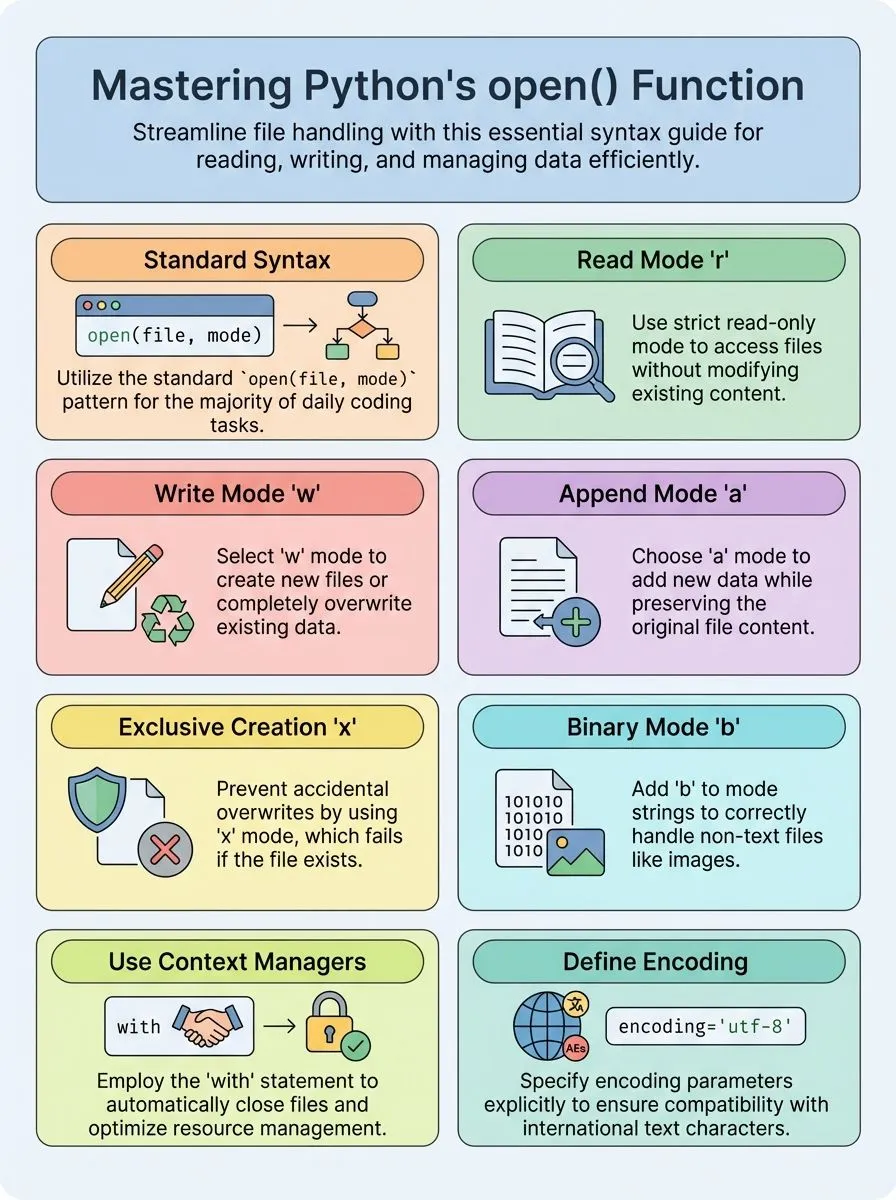
- File modes include “r” for reading, “w” for writing, “a” for appending, and “x” for exclusive creation operations.
- Python 3.6 added support for os.PathLike objects, while Python 3.11 removed the “U” universal newline mode completely.
- The function returns io.TextIOWrapper objects in text mode, enabling efficient string operations and automatic resource management capabilities.
- Context managers with “with” statements provide automatic file closing and prevent resource leaks in Python file operations.
Syntax and Parameters of the open() Function

Python’s open() function follows a simple syntax that makes file handling straightforward for developers at any skill level. The function accepts several parameters that control how files behave, giving programmers precise control over their file operations.
What is the correct syntax for the open() function in Python?
The open() function follows a specific syntax pattern that every Python developer needs to master. The complete syntax reads: open(file, mode, buffering=-1, encoding=None, errors=None, newline=None, closefd=True, opener=None).
This built-in function accepts eight parameters, though most programmers use only the first two in daily coding tasks.
Python version 3.6 introduced support for os.PathLike objects, expanding the function’s flexibility for file handling operations. The file parameter accepts both string paths and integer file descriptors, giving developers multiple ways to specify their target files.
Alex Herrick from Web Design Booth frequently uses this function when creating custom WordPress themes, finding the straightforward syntax perfect for managing configuration files and template data.
The function returns a file object that programmers can use to read, write, or manipulate file contents. Understanding each parameter helps developers choose the right combination for their specific file operations and system requirements.
What are the common parameters of open() and how do I use them?
Understanding the syntax gives you the foundation, but mastering the parameters unlocks the real power of Python’s built-in open function. These parameters control how your program interacts with files and determines the behavior of file operations.
- file parameter accepts both filename strings and integer file descriptors, making it flexible for different file access methods in your Python programs.
- mode parameter specifies how you want to open the file, with “r” for read being the default, “w” for write, and “a” for append operations.
- buffering parameter controls memory usage during file operations, where 0 disables buffering for binary files and 1 enables line buffering for text files.
- encoding parameter works only with text files and sets the character encoding, with the system typically using locale.getencoding() as the default value.
- errors parameter manages how Python handles encoding problems, offering options like “strict”, “ignore”, “replace”, and “surrogateescape” for different error handling strategies.
- newline parameter determines how line endings get processed, with None enabling universal newlines mode and empty strings returning untranslated line breaks.
- closefd parameter controls whether file descriptors stay open after closing the file object, defaulting to True for filename usage and False for descriptor access.
- opener parameter accepts callable functions that customize file opening behavior, useful for directory-relative access and advanced file system operations.
Modes for Opening Files with open()
**Understanding File Opening Modes in Python**
Python offers several file modes that control how your program interacts with files on your computer. Each mode serves a specific purpose, from reading existing content to creating brand new files or adding data to what’s already there.
Different file modes: read, write, append, and binary
Python offers several file modes that control how files open and what operations users can perform. The “r” mode opens files for reading only and serves as the default setting, but it raises an error if the file does not exist.
Write mode (“w”) creates a new file or completely overwrites existing content, making it perfect for fresh starts. Append mode (“a”) adds content to the end of existing files or creates new ones if they don’t exist, preserving original data.
The right file mode determines whether you preserve, replace, or extend your data.
Binary mode (“b”) handles non-text files like images and executables, while text mode (“t”) processes regular text files and remains the default option. Users can combine these modes, such as “rb” for reading binary files or “wb” for writing binary data.
The “x” mode provides exclusive creation, failing safely if files already exist. Update mode (“+”) allows both reading and writing operations on the same file. Python 3.11 removed the “U” universal newline mode, streamlining file handling options.
These file modes give developers precise control over how their programs interact with the operating system and manage computer files.
Understanding these modes helps determine the correct syntax for different file operations.
How do I choose the right mode when opening a file?
Understanding file modes helps developers select the correct approach for their specific task. Each mode serves a distinct purpose and affects how Python handles the file data.
- Use “r” mode to read existing files without changing their content, perfect for loading configuration files or analyzing data sets.
- Choose “w” mode to create new files or completely replace existing ones, ideal for generating reports or saving processed results.
- Select “a” mode to add new content while keeping existing data intact, great for log files or continuous data collection.
- Apply “x” mode for exclusive file creation to prevent accidental overwrites of important documents or data files.
- Pick “b” mode for binary files like images, videos, or executable programs to avoid text encoding issues.
- Combine modes such as “rb” for reading image files or “w+” for files that need both writing and reading capabilities.
- Stick with text mode for regular documents since Python defaults to this setting for most file operations.
- Specify encoding parameters explicitly for international text or non-ASCII characters to ensure proper file handling across different systems.
- Consider file size and system resources since different modes affect memory usage and processing speed during file operations.
Practical Examples of Using open()
Real-world python examples demonstrate how developers handle files with confidence and precision. These practical demonstrations show creative professionals exactly how to write programs that manage file operations across different projects and workflows.
How do I create and write to a new file using open()?
Creating new files in Python becomes simple with the built-in open function. This powerful tool lets developers write programs that handle file operations with just a few lines of code.
- Open a file in write mode using “w” parameter – Use the syntax
open("filename.txt", "w")to create a new file or overwrite an existing one, as any existing content gets replaced completely. - Apply the exclusive creation mode with “x” parameter – Execute
open("geeksforgeeks.txt", "x")to create a file only if it doesn’t already exist, preventing accidental overwrites of important data. - Write content directly using the write method – Call
open("geeksforgeeks.txt", "w").write("Geeksforgeeks is best for DSA")to create and populate a file in one clean operation. - Implement context managers with the “with” statement – Use
with open("example.txt", mode="w") as file: file.write("Hello, World!")for automatic file closing and better resource management. - Configure encoding parameters for text compatibility – Specify encoding like
open("data.txt", "w", encoding="utf-8")to ensure proper handling of special characters and international text. - Adjust buffering settings for performance optimization – Set buffering parameters in write mode to control how Python handles data flow between memory and the filesystem.
- Handle file objects as TextIOWrapper instances – The open function returns io.TextIOWrapper objects in text mode, providing methods for efficient string operations and formatting.
- Create files with custom opener functions – Advanced scenarios support custom openers that give developers control over the system call process and file creation behavior.
How can I read from and append to an existing file?
Creating new files sets the foundation for file operations. Working with existing files opens up more advanced possibilities for data manipulation and storage.
- Use open(“filename.txt”, “r”) to read existing file content and store it in a variable for processing.
- Apply the read() method like open(“geeksforgeeks.txt”, “r”).read() to access complete file contents at once.
- Switch to append mode with open(“filename.txt”, “a”) to add new data without losing existing content.
- Execute write operations in append mode using open(“geeksforgeeks.txt”, “a”).write(“..>>Visit geeksforgeeks.org for more!!<<..”) to preserve original data.
- Combine reading and appending with “a+” mode to access file contents while adding new information simultaneously.
- Specify encoding parameters for international text files to handle unicode characters correctly across different systems.
- Handle binary files using “ab” mode for appending binary data to existing files without corruption.
- Create practical workflows like reading names from “names.txt” and writing uppercase versions to “uppercase_names.txt” for data transformation.
- Catch OSError exceptions that occur when files cannot be accessed due to permission issues or missing paths.
Conclusion
Python’s open() function stands as one of the most essential built-in functions for creative professionals and tech enthusiasts. This powerful tool transforms file handling from a complex task into a straightforward process.
Developers can read, write, and manage files with just a few lines of code.
The function offers incredible flexibility through its various modes and parameters. Text files, binary files, and different encoding options become accessible to programmers at any skill level.
Error handling capabilities ensure robust applications that won’t crash when files go missing.
Creative professionals working with data files, content creators managing large projects, and developers building file-based applications will find this function indispensable. The open function empowers users to build sophisticated file management systems without external libraries or complicated workarounds.
For more insights on Python versions and how they might affect file handling, visit our detailed guide Python 2 vs. Python 3: Key Differences.
FAQs
1. What is the Python open function and how does it work?
The Python open function is one of the built-in functions used to open files in your programs. This function takes two arguments: the file name and the mode you want to use. The function returns a file handle that lets you read or write to files.
2. How do you open a file in Python using different modes?
You can open a file in Python by calling the open function with the file path as a string. The second parameter tells Python how you want to use the file, like ‘r’ for reading or ‘w’ for writing. If no mode is given, Python opens the file in read mode by default.
3. What happens when you need to work with binary files in Python?
You must open them in binary mode by adding ‘b’ to your mode parameter. This lets you work with files that contain binary data instead of text. The file in binary mode handles bytes instead of regular text strings.
4. How do you check if a file exists before opening it?
You can write a program that checks if the file exists using built-in Python functions before trying to open it. This prevents errors from happening when your code tries to access files that are not there.
5. What encoding issues should you know about when opening files?
Python uses a default encoding when opening text files, but this can cause problems with special characters. You can set the encoding parameter when you call the open function to make sure your file handles text correctly.
6. Why is it important to close files after opening them?
You must make sure the file is closed when you finish using it to free up system resources. Python classes and modules provide ways to handle this automatically, but you should always check that your file handles are properly closed to avoid memory issues.