

Working with files in Python can feel tricky when you first start coding. Python’s open() function serves as the main tool for reading and writing files in any Python program. This guide breaks down python with open techniques using clear examples from Python 3.14.3 documentation.
Master file handling today.
Key Takeaways
- Python’s open() function creates file objects that allow programs to read, write, and manipulate external files easily.
- The with statement automatically closes files and handles errors, preventing memory leaks and resource management problems.
- File modes like ‘r’ for reading, ‘w’ for writing, and ‘a’ for appending control how files behave during operations.
- Try-except blocks catch FileNotFoundError exceptions, allowing programs to handle missing files without crashing completely.
- Multiple files can be opened simultaneously using separate with statements or nested blocks for efficient data processing.
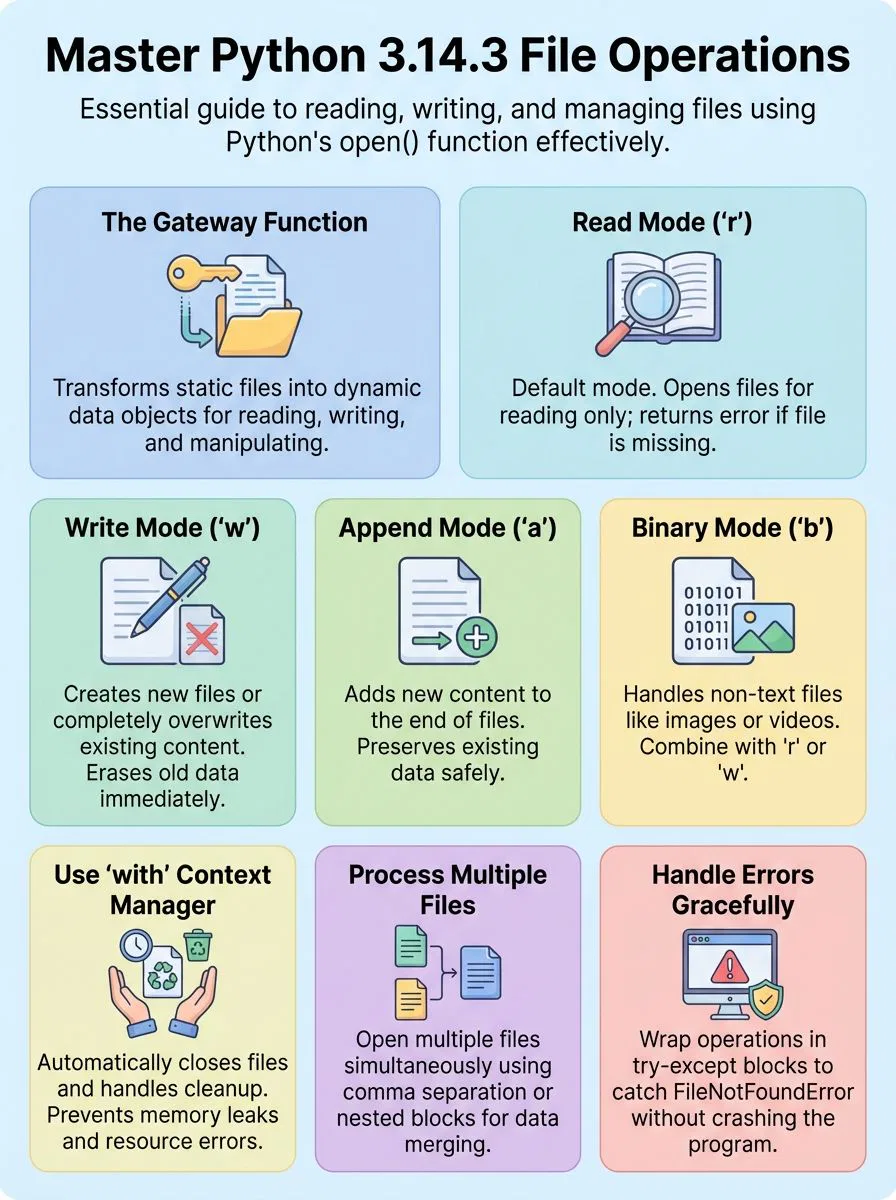
Overview of the open() Function in Python

The open() function serves as Python’s primary tool for file operations, creating a bridge between your code and external files. This built-in function transforms file paths into file objects that your programs can read, write, and manipulate with ease.
What does the open() function do in Python?
Python’s built-in open function creates a bridge between your code and files stored on your computer. This powerful function returns a file object that gives programmers the ability to read from files, write new content, or add information to existing documents.
File operations become simple when developers use this essential tool that comes standard with every Python installation.
The open() function is the gateway that transforms static files into dynamic data streams for Python applications.
File handling transforms from complex to straightforward with open(). Developers can access text files, binary files, JSON data, and countless other file formats through this single function.
The function takes a filename as its first argument and creates a connection that allows reading specific characters, processing entire lines, or writing fresh content. Python offers multiple file modes including read (‘r’), write (‘w’), and append (‘a’) to match different project needs.
Creative professionals and tech enthusiasts find this function invaluable for processing large datasets, managing configuration files, and building dynamic applications that interact with external data sources.
What are the different modes for opening files (r, w, a, b)?
Python’s open function offers several file modes that control how files behave. Each mode determines the type of access and format for your file operations.
- Read mode (‘r’) opens files for reading only and positions the cursor at the beginning of the file. This default mode throws an error if the file doesn’t exist.
- Write mode (‘w’) creates a new file or overwrites an existing file completely. This mode erases all contents of the file before writing new data.
- Append mode (‘a’) adds new content to the end of an existing file without erasing current data. The cursor starts at the end of the file automatically.
- Binary mode (‘b’) works with binary files like images, videos, or executable programs. Combine this with other modes like ‘rb’ or ‘wb’ for specific operations.
- Text mode (default) handles regular text files with proper encoding and newline character conversion. Most file operations use this mode automatically.
- Read-write mode (‘r+’) allows both reading and writing to an existing file. The file must exist before using this mode.
- Write-read mode (‘w+’) creates a new file for both reading and writing operations. This mode overwrites existing files completely.
- Append-read mode (‘a+’) enables reading and appending to files simultaneously. New content goes to the end while reading starts from the beginning.
- Combined modes like ‘rb’, ‘wb’, or ‘ab’ handle binary files with specific access patterns. These modes prevent automatic text encoding conversions.
Using the with Statement for File Handling
The with statement makes file handling safer and cleaner in Python. This powerful context manager automatically handles file operations, ensuring your files close properly even when errors occur.
How do you use the with statement for file operations?
Python’s with statement makes file handling safer and cleaner. This context manager automatically closes files and handles errors properly.
- Write the basic syntax with open() function and filename. Use
with open('filename.txt', 'r') as file:to start reading a file. Python opens the file and assigns it to the variable name after “as”. - Place your file operations inside the indented block. All code that works with the open file must be indented under the with statement. Python automatically manages the file’s lifecycle within this block.
- Let Python handle the enter and exit methods automatically. The with statement calls these special methods to open and close files. You never need to write these methods yourself.
- Skip calling close() on the file object manually. The with statement closes files automatically when the code block ends. This prevents memory leaks and file handle problems.
- Handle exceptions without losing file resources. Python closes the file even if errors occur during file operations. The with statement ensures clean-up of resources in all situations.
- Open multiple files using comma separation. Write
with open('file1.txt', 'r') as f1, open('file2.txt', 'w') as f2:to work with two files. Both files close automatically when done. - Use different file modes within the with block. Specify ‘r’ for reading, ‘w’ for writing, or ‘a’ for appending. The syntax stays the same regardless of the chosen mode.
- Read file contents using built-in functions like readline(). Call
file.read()orfile.readline()inside the with block. These functions work normally within the managed context.
Advanced file handling techniques offer even more powerful ways to work with multiple files and error management.
What are the benefits of using with for file handling?
The with statement transforms file handling from a risky task into a safe, automatic process. Using with guarantees that files are closed automatically, even if errors occur during file operations.
This powerful feature prevents memory leaks and file descriptor exhaustion, two common problems that plague developers who forget to close files manually.
File management becomes effortless with the with statement’s built-in safety features. The statement provides concise and readable code for file operations while ensuring better file management and memory safety compared to manual closing.
Python handles all the cleanup work behind the scenes, reducing the risk of resource leaks by managing file context automatically. Developers can focus on their core logic instead of worrying about proper file cleanup, making their code both cleaner and more reliable.
Advanced File Handling Techniques
Python developers often need to work with multiple files at once or handle errors when files don’t exist. These advanced techniques help programmers build stronger applications that can manage complex file operations, handle exceptions gracefully, and process large amounts of data across different file formats and structures like lists and dictionaries.
How can you read and write multiple files in Python?
Working with multiple files becomes simple when developers use proper file handling techniques. Python allows opening multiple files simultaneously using multiple with statements or nested with blocks for efficient data processing.
- Open multiple files using separate with statements – Create individual with blocks for each file to maintain clean code structure. This approach ensures automatic closure and proper resource management for all file handles.
- Use nested with statements for related file operations – Combine reading from one file while writing to another file within the same block. File objects can be managed individually for reading, writing, or appending operations.
- Loop through file objects line by line for memory efficiency – Process large files without loading entire contents into memory at once. Efficient file processing can be achieved by looping through file objects line by line.
- Handle multiple file paths with list iteration – Store file paths in a list or tuple and iterate through them. Open each file using the open function with appropriate modes like ‘r’ for reading or ‘w’ for writing.
- Read from multiple source files and merge content – Combine data from several input files into a single output file. Reading and writing multiple files is essential for tasks like data transformation, merging, or splitting files.
- Write data to multiple output files simultaneously – Split large datasets across multiple files for better organization. Use different file handles to write specific data portions to separate destination files.
- Implement proper error handling for file operations – Wrap file operations in try-except blocks to catch file not found errors. Close files properly even when exceptions occur during processing.
- Use context managers to ensure files stay closed – The with statement automatically closes files when operations complete or errors happen. This prevents memory leaks and keeps system resources available for other processes.
How do you handle file not found errors in Python?
Python provides error handling mechanisms such as try-except blocks for file operations. These blocks catch FileNotFoundError exceptions that occur when Python cannot find a file. Alex Herrick from Web Design Booth often uses this approach when building custom WordPress themes that need to read configuration files.
The try block contains the code that might fail, while the except block handles the error gracefully. This prevents program crashes and allows for user-friendly messaging.
Proper error handling improves code reliability. FileNotFoundError can be caught to handle missing files without stopping the entire program. The platform’s tutorials and documentation include examples of exception handling in file operations.
Using with statements in combination with error handling improves robustness and safety. Developers can display helpful messages, create missing files, or prompt users for correct file paths.
This approach keeps programs running smoothly even when files go missing.
How can I learn more about the open() function in Python?
W3Schools offers comprehensive tutorials that cover Python’s built-in functions, including the open() function. These free resources provide syntax explanations, parameter details, and practical usage examples.
The platform includes interactive exercises and quizzes that help users practice file handling techniques. Code challenges allow developers to test their skills with real-world scenarios involving file input and output operations.
The tutorials progress from basic concepts to advanced file handling techniques. Users learn about different file modes, error handling, and working with various file types. Python references on the platform detail language features and built-in functions with clear examples.
Certification courses provide structured learning paths that cover file operations, string manipulation, and working with different types of objects. These resources help creative professionals and tech enthusiasts master Python file handling without spending money on expensive courses.
Conclusion
Python’s open function transforms how developers handle files. This powerful tool makes reading and writing data easy for everyone. Creative professionals can build amazing projects using these file handling skills.
The with statement keeps code clean and safe. Files close automatically, preventing data loss and memory issues. Smart developers always use this approach for better programs.
File operations open doors to exciting possibilities. YouTubers can process video data, while tech enthusiasts can analyze large datasets. These skills help creators build tools that solve real problems and boost productivity.
FAQs
1. How do you open a file in Python using the open function?
You use the open function in Python by calling open() with the file name as the first argument. The function returns a file object that lets you read from a file or write to it. Always close the file when you finish working with it.
2. What happens when you want to open a file that doesn’t exist?
Python will create a new file if you open it in write mode and the file doesn’t exist. If you try to read a file that isn’t there, Python will show an error.
3. How do you properly close a file after opening it?
Call the close() method on your file object to close a file properly. This frees up system resources and makes sure your data gets saved correctly.
4. What encoding should you use when working with text files in Python?
UTF-8 is the best default encoding for most text files in Python. You can set this by adding encoding=’utf-8′ as a parameter when you open the file.
5. How do you read and write data from an open file?
Use the read() method to get data from a file, and write() to put data into it. You can read the whole file at once or read it line by line. The current position in the file moves as you read or write.
6. What are the main arguments you pass to the open function?
The open function takes two main arguments: the file name as a string and the mode. The mode tells Python if you want to read, write, or do both with the file.