

Python developers face a common problem: outdated packages can break code and create security risks. Many users struggle with the pip install update process, often making mistakes that lead to system conflicts or broken dependencies.
This guide reveals the exact steps to safely upgrade Python packages on Linux systems, plus expert tips to avoid common pitfalls that trip up even experienced programmers.
Alex Herrick and Joshua Correos from Web Design Booth bring over ten years of combined experience in web development and system optimization to this tutorial. Their team has helped countless developers master package management across different Linux distributions, from Ubuntu to CentOS.
The methods outlined here come from real-world testing and troubleshooting sessions with clients who needed reliable Python environments for their projects. Ready to master pip upgrades?
Key Takeaways
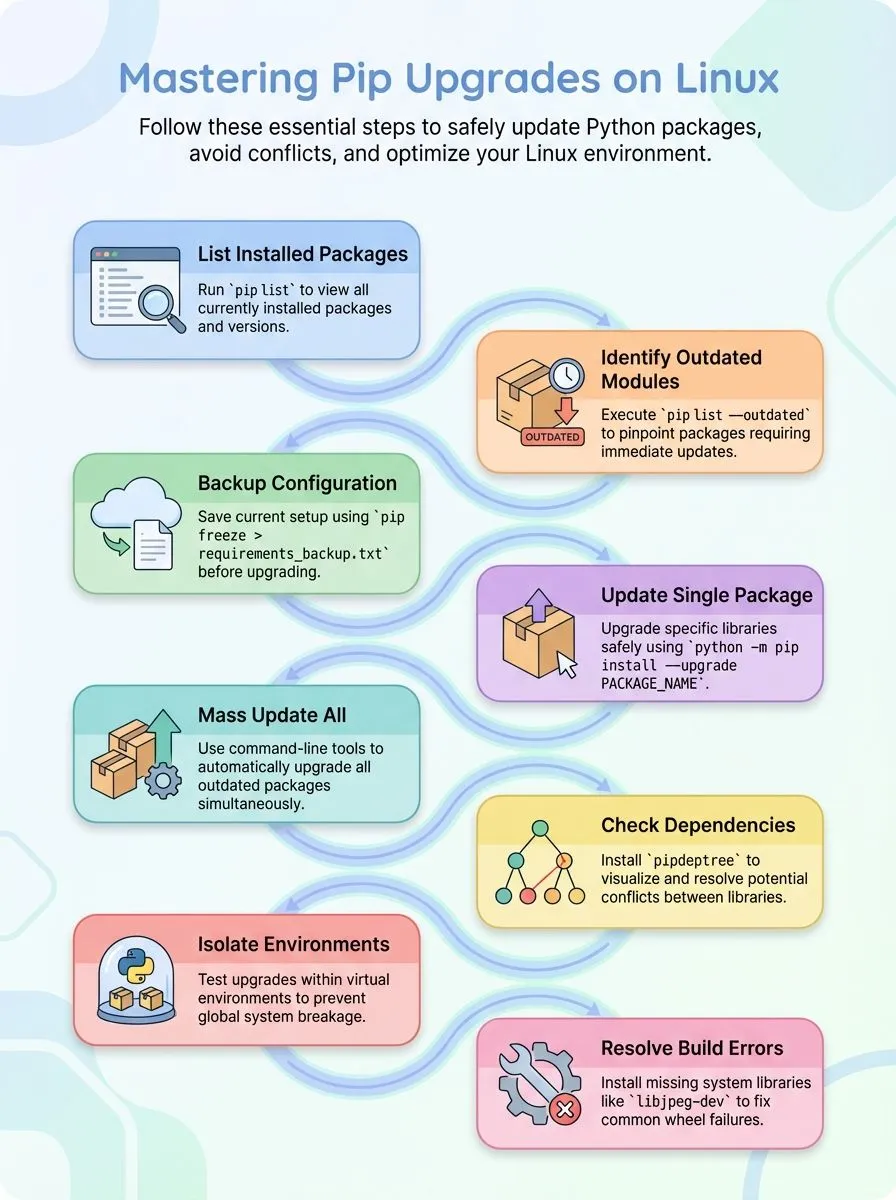
- Use
pip list --outdatedto identify packages needing updates andpip install --upgrade PACKAGE_NAMEfor single package upgrades. - Update all outdated packages at once with
pip list --outdated --format=freeze | awk -F '==' '{print $1}' | xargs -n1 pip install -U. - Install pipdeptree to check package dependencies and prevent conflicts that could break existing Python projects during updates.
- Test package updates in virtual environments first using
source env/bin/activateto protect your main system from potential issues. - Create backup package lists with
pip freeze > requirements_backup.txtbefore mass updates to restore packages if problems occur.
How to Check for Outdated Python Packages

Python developers need to stay on top of their package versions to keep their projects running smoothly. Checking for outdated packages helps identify which modules need updates and prevents compatibility issues down the road.
How do I list all installed Python packages?
Checking installed Python packages helps developers track their project dependencies and manage their development environment. The pip list command provides a quick way to view all packages currently installed on a system.
- Open your terminal or command prompt – Access the command line interface on your Linux system to run pip commands and check your Python installation.
- Run pip list command – Type
pip listto display all installed python packages along with their version numbers in a simple table format. - Use python -m pip list for specific versions – Execute
python3 -m pip listorpython2.7 -m pip listto target specific Python versions when multiple versions exist on your system. - Check globally installed packages location – Global packages live at
/usr/lib/python[VERSION]/site-packagesdirectory where VERSION matches your Python version like 3.6, 3.8, or 3.9. - Find user-installed packages – Packages installed with –user flag appear in
~/.local/lib/python[VERSION]/site-packagesdirectory for the current user account. - Filter outdated packages – Run
pip list --outdatedto see which packages need updates and their latest available versions from PyPI. - Export package list to file – Use
pip list > packages.txtto save your current package list for documentation or sharing with team members. - Check packages in virtual environment – Activate your virtual environment first, then run pip list to see only packages installed in that specific environment.
How can I identify which Python packages are outdated?
Python developers need to keep their packages current for security and performance. Checking for outdated packages helps maintain a stable development environment.
- Run
pip list --outdatedto display all packages that need updates, showing both installed and latest version numbers for each package. - Install pip-review using
pip install pip-reviewto get a specialized tool that makes package management easier for developers. - Execute
pip-review --interactiveto see outdated packages and choose which ones to upgrade individually through an interactive interface. - Use
pip list --outdated --format=jsonfor newer pip versions to get machine-readable output that works better for automation scripts. - Check the output format carefully since
pip list --outdated --format=freezefails in pip version 23.1.2 and later releases. - Look for packages like numpy showing version 1.21.0 installed with 1.24.3 available, or requests displaying 2.25.1 installed with 2.31.0 latest.
- Note that some users report building wheel errors with pip-review, specifically the “invalid command ‘bdist_wheel'” message during installation.
- Review the package list regularly to catch security patches and bug fixes that improve Python development workflows.
Once developers identify outdated packages, the next step involves learning the proper upgrade commands and techniques.
Upgrading Python Packages Using pip
Upgrading Python packages keeps your projects running smoothly and gives you access to the latest features. Python developers can use pip to update single packages or upgrade multiple packages at once, making package management simple and efficient.
How do I update a single Python package with pip?
Updating a single Python package with pip is straightforward and takes just one command. This method allows users to upgrade specific packages without affecting other installed software.
- Open the terminal or command prompt on your Linux system. Most Linux distributions include a built-in terminal that provides access to the package manager.
- Type
python -m pip install --upgrade PACKAGE_NAMEand replace PACKAGE_NAME with your target package. This command tells pip to download and install the latest version available. - Press Enter to execute the command and wait for the process to complete. The system will show download progress and installation status messages during the upgrade process.
- Check the output message that displays “Requirement already satisfied” if the package is already up-to-date. This indicates no action is needed since the current version matches the latest available version.
- Review the upgrade details showing old version removal and new version installation. For example, pip might update from version 21.2.4 to 22.0.3 with a 2.1MB download size.
- Use
python -m pip install --upgrade pipto update pip itself to the latest version. Keeping the package installer current ensures compatibility with newer Python packages. - Apply
python -m pip install --upgrade seleniumorpython -m pip install --upgrade requestsfor common packages. These examples show how to upgrade popular libraries used in web automation and HTTP requests. - Verify the upgrade completed successfully by checking the installation location at
/usr/local/lib/python3.X/dist-packages. This directory contains all globally installed packages for Python 3 versions.
How can I upgrade all outdated Python packages at once?
Updating single packages works great for specific needs, but many developers prefer updating everything together. Managing python packages becomes much easier when you handle all outdated packages in one command.
- Run the complete upgrade command to update all outdated packages automatically. Use this powerful one-liner:
pip list --outdated --format=freeze | awk -F '==' '{print $1}' | xargs -n1 pip install -Uto upgrade everything at once. - Check your python versions installed before running mass updates. Different python versions may have different package requirements, so verify which Python interpreter pip uses with
pip --version. - Create a backup list of current packages before upgrading everything. Save your current setup with
pip freeze > requirements_backup.txtto restore packages if something breaks. - Use virtual environments to test mass updates safely. Virtual environment for each project prevents system-wide issues and keeps your main Python installation stable.
- Monitor the upgrade process for dependency conflicts. Watch the terminal output carefully as pip processes each package to catch any compatibility warnings or errors.
- Restart your terminal or IDE after completing mass updates. Fresh sessions ensure all updated packages load correctly and prevent import errors from cached modules.
- Test critical applications immediately after upgrading all packages. Run your most important Python scripts to verify everything still works with the latest versions.
- Consider using pip-review for a more interactive upgrade experience. Install it with
pip install pip-review, then runpip-review --autofor automated updates with better feedback.
What to Do When pip Install Isn’t Working?
Pip installation failures can frustrate even experienced Linux users, but most issues have simple solutions. User “makkasi” reported a typical error related to building wheels for pip-review with the message “invalid command ‘bdist_wheel'”.
This error often occurs when system libraries are missing or outdated. Installing missing dependencies like libjpeg-dev can resolve many build failures. Clearing the pip cache with `pip install –no-cache-dir` eliminates corrupted files that cause installation problems.
Checking installation logs reveals specific error messages that point to the root cause of failures.
Dependency conflicts create another common roadblock during package installations. Installing pipdeptree with `pip install pipdeptree` helps identify which packages conflict with each other.
The official documentation recommends reverting to previous package versions using `pip install ==` when new updates break existing functionality. For example, rolling back Django requires the command `pip install django==3.2`.
User “Wayne” discovered that Jupyter notebook users should use `%pip` instead of `!pip` for better compatibility with the Python environment. These troubleshooting steps resolve most pip installation issues without requiring administrator privileges or complex system modifications.
Best Practices for Updating Packages
Updating Python packages requires careful planning to avoid breaking your projects. Smart developers follow proven strategies that protect their code while keeping libraries current and secure.
How can I ensure compatibility with package dependencies?
Package dependency conflicts can break Python projects fast. Alex Herrick learned this lesson during his early WordPress development days, when updating packages without checking dependencies crashed entire websites.
Smart developers use `pip install pipdeptree` to identify and resolve dependency conflicts before they cause problems. This tool shows exactly which packages depend on others, making it easy to spot potential issues.
User “Gathide” warns that upgrading packages en masse may disrupt dependencies and recommends upgrading only when necessary. Pin dependencies in requirements.txt to prevent unintentional upgrades that could break your code.
Test updates thoroughly in virtual environments first, then check logs for errors to identify problematic dependencies. Pip updates dependencies by default when upgrading a package if needed, but rollbacks are supported with `pip install ==` if something goes wrong.
Why should I use virtual environments for testing updates?
Virtual environments create safe testing spaces for Python package updates. These isolated environments protect the main system from potential conflicts or bugs that might occur during upgrades.
Python 2.7 uses virtualenv for environments, while Python 3.6 and Python 3.9 have built-in venv support. Packages installed in a virtual environment do not affect the global Python installation, making them perfect for creative professionals who need stable tools.
Testing updates in virtual environments prevents module conflicts that could break existing projects. Developers can activate a virtual environment with `source env/bin/activate` on Mac and Linux systems, test their upgrades safely, then deactivate the environment with the `deactivate` command.
This approach ensures stability during upgrades and allows users to verify compatibility before applying changes system-wide. Virtual environments are essential for managing different versions of Python and pip across multiple projects.
Conclusion
Keeping Python packages current transforms development work from frustrating to fantastic. Alex Herrick and Joshua Correos know that updated packages mean fewer bugs, better performance, and access to cutting-edge features.
Smart developers use pip install commands with confidence, whether upgrading single packages or refreshing entire environments. Virtual environments protect projects from conflicts while sudo commands handle system-wide updates safely.
Package management becomes second nature with practice, turning complex tasks into simple terminal commands that boost productivity and code quality.
If you’re encountering issues with pip install commands, find out how to troubleshoot them by visiting our detailed guide here.
FAQs
1. What is pip and why do I need to upgrade Python packages on Linux?
Pip is a package manager for Python that helps you install and manage software from the Python Package Index. You need to upgrade packages to get the latest versions with new features, patch computing fixes, and software bug repairs.
2. How do I check if pip and Python are installed on my Linux system?
Open your terminal and type “python –version” to check your version of Python. Then type “pip –version” to see if pip is installed globally on your operating system.
3. What’s the basic command to upgrade a Python package using pip on Linux?
Use “pip install –upgrade package-name” to update any package to its newest version. For system-wide installations, you might need sudo permissions depending on your Linux setup.
4. How can I upgrade all my Python packages at once on Linux?
You can upgrade all packages by running “pip list –outdated” first to see what needs updates. Then use “pip install –upgrade package-name” for each one, or use pip-review tools for batch updates.
5. What are common issues when upgrading Python packages on Linux and how do I fix them?
Permission errors are frequent problems that require sudo access for global installations. Version conflicts between different operating systems can also occur, so check the pip documentation and python documentation for compatibility. Make sure you have the correct Python version installed before upgrading packages.
6. How do I get pip up-to-date if it’s not installed on my Linux system?
Download get-pip.py from the official Python website and run “python get-pip.py” to install pip. This method works on most Unix systems including macOS and Linux, giving you access to the latest versions of Python package management tools.