

Many developers face confusion when they encounter both “python” and “python3” commands on their systems, not realizing that python is python3 in most modern installations. This naming convention exists simply to help users distinguish between the older Python 2 and the current Python 3 versions, but both commands often point to the same Python 3 interpreter.
Understanding this distinction saves time and prevents installation headaches that plague countless programmers daily.
Alex Herrick brings over ten years of industry experience designing custom WordPress themes and responsive web solutions, giving him deep insight into the development tools that power modern web applications.
Python serves as a cornerstone programming language for many web projects, automation scripts, and creative applications that tech enthusiasts and content creators rely on. This guide cuts through the confusion and provides clear steps for installing Python correctly.
Ready to master Python installation once and for all?
Key Takeaways
- Modern systems use “python” and “python3” commands interchangeably, both pointing to Python 3 interpreters on current operating systems.
- The python-is-python3 package creates symbolic links that make “python” commands automatically point to Python 3 installations.
- Ubuntu users install Python through APT commands, while macOS users benefit from Homebrew for better version control.
- Pyenv manages multiple Python versions seamlessly, allowing developers to switch between different releases for various project requirements.
- Virtual environments prevent package conflicts by creating isolated spaces where specific library versions operate without interfering.
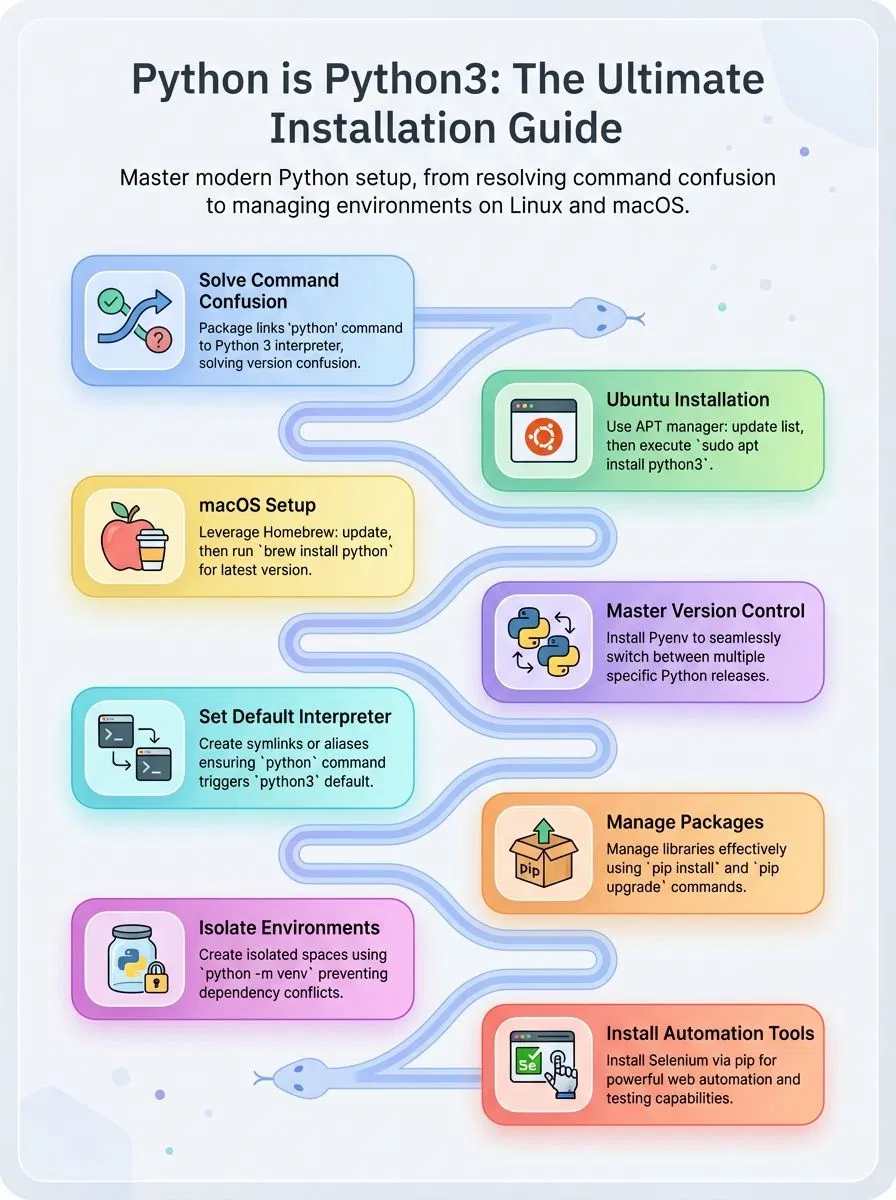
Understanding the python-is-python3 Package

Modern Linux systems create confusion for developers who type “python” at the command line. The python-is-python3 package solves this problem by creating a symbolic link that makes “python” point directly to the Python 3 interpreter.
What is the purpose of the symlink in python-is-python3?
The python-is-python3 package creates a crucial bridge between old and new Python commands. This symlink connects the generic “python” command to Python 3, solving a major headache for developers who work with modern Python code.
The naming convention helps distinguish between Python 2 and Python 3 installations on the command line, making version management much cleaner.
Many Linux systems ship with Python 3 as the default python interpreter, but the python command often points nowhere or to the outdated Python 2.7. The symlink fixes this gap by creating a direct path from /usr/bin/python to /usr/bin/python3.
This setup allows developers to type “python” instead of “python3” for every command, streamlining the development process and reducing confusion across different operating systems.
How compatible are Python and Python3 on modern systems?
Modern systems show excellent compatibility between python and python3 commands. Both commands refer to Python 3.x versions on current operating systems. Users can run either command and get the same results.
This compatibility makes Python development much easier for programmers.
System administrators maintain this compatibility to keep software running smoothly. Critical system functions rely on the OS-included Python version for stability. Ubuntu, macOS, and other platforms ensure both commands work correctly.
Developers can install python packages using either pip or pip3 without major conflicts. The python software foundation designed this compatibility to help users transition from older versions.
Modern Python installations handle multiple versions of python seamlessly across different operating systems.
Downloading and Installing Python and Python3
Getting Python on your system doesn’t have to be complicated… there are several straightforward methods that work across different operating systems. Whether you’re using Ubuntu, macOS, or Windows, you can download the latest version of Python and get coding in just a few minutes.
How do you install Python on Ubuntu using APT?
Ubuntu makes Python installation simple through its built-in package manager. The APT system handles all dependencies and ensures users get a stable version of python that works perfectly with their Linux distribution.
- Update the package list first – Run
sudo apt updateto refresh available packages and ensure the system has the latest information about Python versions. - Install Python 3 with a single command – Execute
sudo apt install python3to download and install the latest version of Python 3 available in Ubuntu’s repositories. - Verify the installation worked correctly – Type
python3 --versionin the terminal to confirm Python installed successfully and check which specific version the system now runs. - Install pip for package management – Run
sudo apt install python3-pipto add pip, which helps manage third-party libraries and packages for Python projects. - Set up development tools if needed – Execute
sudo apt install python3-devto install header files that some Python packages require during compilation. - Create an alias for easier access – Add
alias python=python3to the shell configuration file to usepythoninstead of typingpython3every time. - Install virtual environment support – Run
sudo apt install python3-venvto enable creating isolated Python environments for different projects and avoid dependency conflicts. - Test the installation with a simple script – Create a basic Python file and run it using
python3 filename.pyto ensure everything functions properly.
How do you install Python on macOS using Homebrew?
Mac users can install Python through Homebrew, Apple Inc.’s popular package manager that makes software installation simple. This method gives developers better control over their Python installation compared to the pre-installed system version.
- Install Homebrew first by visiting the official website and running the installation script in Terminal. The command-line interface will guide users through the setup process automatically.
- Update Homebrew to ensure access to the latest python packages by typing “brew update” in Terminal. This step prevents installation issues with outdated package information.
- Install Python using the following command: “brew install python”. Homebrew automatically downloads and installs the latest python version along with pip for package management.
- Verify the installation by checking the Python version with “python3 –version” in Terminal. The system should display the newly installed version number, confirming successful installation.
- Set up the path environment variable if needed by adding Homebrew’s Python directory to the shell configuration file. This ensures the system uses the correct Python binary instead of the pre-installed version.
- Install essential packages like pip using “python3 -m pip install –upgrade pip” to manage future Python libraries. This command ensures pip works correctly with the new installation.
- Create a virtual environment for projects to avoid system-wide conflicts between different versions of python packages. Use “python3 -m venv myproject” to create isolated development spaces.
- Test the installation by running a simple Python script or importing standard library modules. This confirms that both the interpreter and core functionality work properly on the Mac system.
Managing Multiple Python Versions
Python developers often find themselves juggling different versions for various projects, and this challenge becomes even trickier with specific python version requirements across different applications.
Pyenv emerges as the go-to tool for handling multiple python versions seamlessly, allowing users to switch between Python 2, Python 3.8, Python 3.11, or any other release without breaking their existing workflows.
How can you use pyenv for Python version management?
Pyenv transforms how developers manage multiple python versions on their systems. This powerful tool lets users switch between different Python releases with simple commands.
- Install pyenv using the automatic installer script – Download and run the pyenv installer from GitHub to set up the version management system on Mac or Linux machines.
- Add pyenv to your shell configuration file – Append the pyenv initialization commands to your .bashrc, .zshrc, or similar shell script to enable automatic loading.
- List available Python versions with pyenv install –list – View all Python releases that pyenv can install, including specific python version numbers and development builds.
- Install your desired Python release using pyenv install – Download and compile a specific python version by running pyenv install followed by the version number like 3.11.5.
- Set a global default Python interpreter – Use pyenv global to establish which Python version becomes the system-wide default for all new terminal sessions.
- Create project-specific Python environments – Run pyenv local in any directory to assign a particular Python version that activates automatically when entering that folder.
- Switch between installed versions instantly – Change your active Python interpreter using pyenv shell commands without complex installation process steps or system modifications.
- Verify your current Python setup – Check which Python version is active by running pyenv version to confirm your environment matches project requirements.
- Uninstall unused Python versions – Remove old Python installations with pyenv uninstall to free up disk space while keeping your preferred versions intact.
How do you set python3 as the default interpreter?
Setting python3 as the default interpreter saves time and prevents version conflicts. Modern systems often manage python versions differently, making this setup crucial for smooth development.
- Check current Python versions using the “which” command to get the full path of installed Python versions on your system.
- Create a symbolic link in /usr/local/bin directory that points python to python3 executable file.
- Install the python-is-python3 package on Ubuntu systems using APT package manager for automatic symlink creation.
- Modify your PATH variable in .bashrc or .zshrc file to prioritize python3 installation directory over python2.
- Use alias commands in your shell configuration file to redirect python commands to python3 interpreter.
- Verify the change by running python –version command to confirm python3 responds as the default interpreter.
- Update pip references to use pip3 explicitly since python package management tools may still point to older versions.
- Test your setup by creating virtual environments using python -m venv to ensure python3 creates the environment correctly.
Best Practices for Installing Python Packages
Installing Python packages correctly saves developers from headaches down the road. The right approach protects your system Python installation while giving you full control over project dependencies.
How do you use pip for managing Python packages?
Pip serves as Python’s default package manager and makes installing packages simple for developers. This tool comes as part of Python installations on most modern systems.
- Check pip installation status – Type
pip --versionin your terminal to verify pip exists on your system and see which version runs currently. - Install new packages easily – Run
pip install package-nameto download and set up any library from the Python Package Index automatically. - Upgrade existing packages – Use
pip install --upgrade package-nameto update libraries to their newest versions and get latest features. - Remove unwanted packages – Execute
pip uninstall package-nameto delete libraries you no longer need and free up storage space. - List installed packages – Type
pip listto display all currently installed libraries and their version numbers in your environment. - Search for specific packages – Run
pip search keywordto find relevant libraries, though this feature may not work on all systems. - Install from requirements files – Use
pip install -r requirements.txtto install multiple packages listed in a text file at once. - Show package details – Execute
pip show package-nameto view information about installed libraries including dependencies and file locations. - Install specific versions – Run
pip install package-name==1.2.3to get exact versions of libraries for compatibility with your projects.
How can you avoid conflicts with virtual environments?
Virtual environments create isolated spaces for Python projects, keeping different versions of libraries separate. Each environment acts like its own directory where specific package versions live without interfering with other projects.
Alex Herrick from Web Design Booth has found that using tools like conda and mamba makes managing these environments much easier than traditional methods. These package management tools help avoid conflicts that often plague developers working on multiple projects.
Creating a new virtual environment for each project prevents version clashes between different Python libraries. Developers can install specific package versions without worrying about breaking existing code.
The python.org documentation shows that virtual environments solve most compatibility issues that arise from mixing different library versions. Conda environments particularly excel at handling complex dependencies that pip sometimes struggles with, making them ideal for data science and web development projects.
This approach leads directly to understanding how pip works for managing Python packages within these isolated environments.
How do you install Selenium using pip?
Selenium stands as a powerful web automation library that helps developers test websites and build automated scripts. Installing this open source tool through pip makes the process simple for anyone working with Python programming language.
- Open the command prompt or terminal on Microsoft Windows, Mac computer, or Linux system to access the Python interpreter environment.
- Check if pip comes already installed with Python since most modern Python installations include this package manager by default.
- Type “pip install selenium” in the terminal to download and install the Selenium library from the Python Package Index repository.
- Verify the installation works correctly by typing “python -c ‘import selenium; print(selenium.version)'” to display the installed version number.
- Install the webdriver manager using “pip install webdriver-manager” to handle browser drivers automatically without manual downloads.
- Update Selenium to the latest version by running “pip install –upgrade selenium” to ensure access to newest features and security patches.
- Create a virtual environment first using “python -m venv myenv” to avoid conflicts with other Python packages in your system directory.
- Activate the virtual environment before installing Selenium to keep dependencies isolated from your main Python installation and other projects.
Conclusion
Python installation becomes simple once users understand the basics. Modern systems handle Python3 as the standard version, making setup straightforward across different platforms.
Joshua Correos emphasizes that proper version management prevents future headaches and keeps projects running smoothly. Virtual environments protect system stability while allowing creative freedom with package installations.
Users who follow these practices will build solid foundations for their coding adventures.
FAQs
1. What is the difference between Python vs Python3?
Python3 is the newer version of the Python programming language. Most systems today use Python3 as the default interpreter when you type “python.”
2. How do I install Python on a Mac computer?
You can use Homebrew package manager to install Python on your Mac. First install Homebrew, then run the command to get the latest Python version.
3. Do I already have Python installed on my system?
Many computers come with Python pre-installed. Check your system by opening a terminal and typing “python” to see if the interpreter starts.
4. What are the different ways to get Python on Ubuntu?
You can install Python through the default package manager or by running install software-properties-common first. Each version of Ubuntu may have different package names for Python installations.
5. Why was Python created in the Netherlands?
Python was developed by Guido van Rossum in the Netherlands during the late 1980s. The programming language was designed to be simple and readable, making it perfect for beginners and experts alike.