

Python users face a common challenge when working with Ubuntu systems. Many struggle to upgrade python ubuntu installations without breaking their system. Over 199,000 developers have searched for solutions to this exact problem.
The key lies in using safe methods that protect your system while giving you access to newer Python versions.
Alex Herrick brings over ten years of experience in web development and system optimization to guide users through this process. His expertise in managing development environments helps developers avoid the pitfalls that can damage their Ubuntu installations.
The deadsnakes repository offers the safest path forward. Python 3.10 brings exciting new features that make the upgrade worth your time. This guide shows you exactly how to do it right.
Key Takeaways
- Over 199,000 developers search for safe Python upgrade solutions on Ubuntu systems without breaking installations.
- The deadsnakes PPA repository provides the safest method to install Python 3.10 on Ubuntu with WSL2.
- Users must install python3.10-venv and python3.10-distutils packages to ensure full Python 3.10 functionality works properly.
- Update-alternatives command lets users switch between Python versions while protecting system tools from breaking completely.
- Virtual environments allow multiple Python versions to coexist safely without affecting the default Ubuntu system installation.
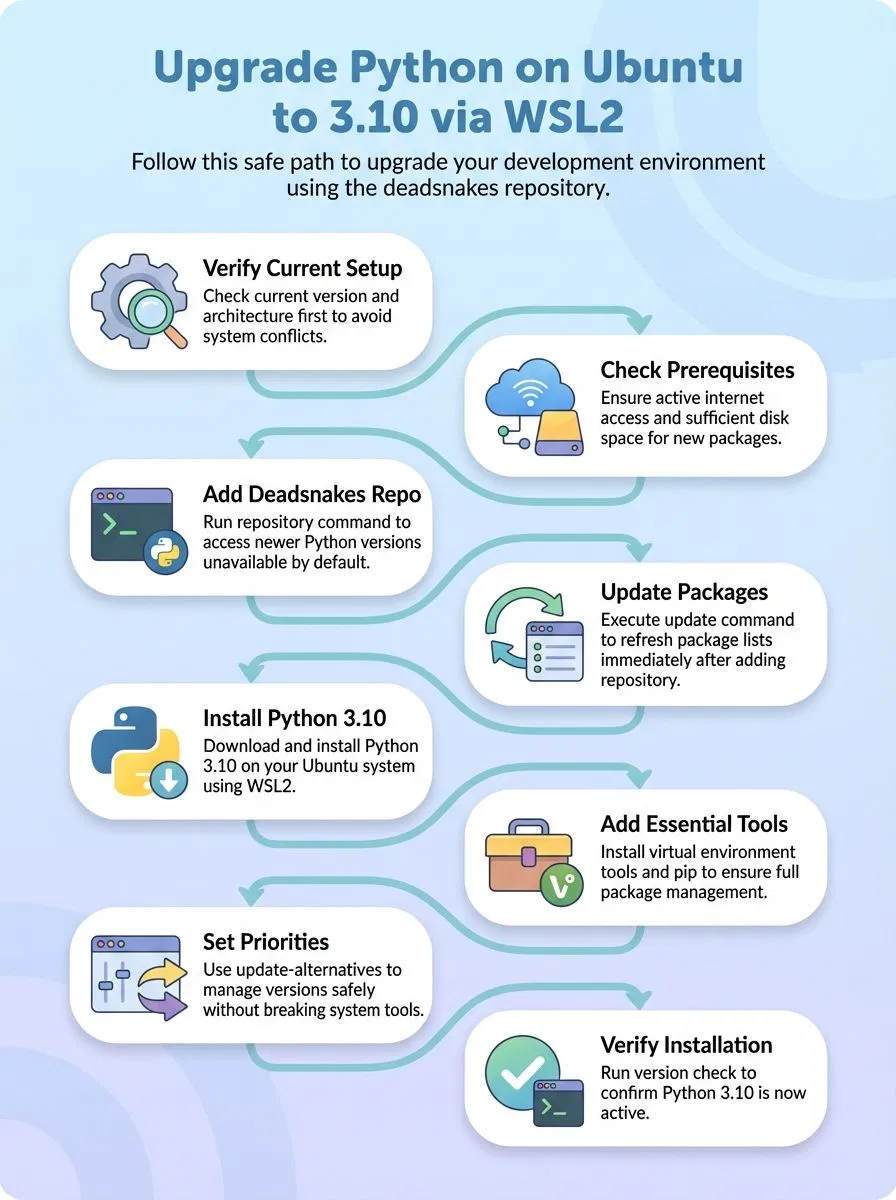
How do I check my current Python version and system compatibility?

Users need to verify their current Python setup before upgrading to avoid conflicts. Checking system compatibility ensures a smooth installation process on Ubuntu with WSL2.
- Open the terminal and type
python3 --versionto see your current Python installation details and version number. - Run
python --versionto check if Python 2.x exists on your system, though Ubuntu systems typically use python3 for modern versions. - Execute
lsb_release -ato display your Ubuntu version information, including whether you’re running Ubuntu 20.04 or Ubuntu 22.04. - Check your system architecture with
uname -mto confirm compatibility with Python 3.10 packages and dependencies. - Verify WSL2 status by running
wsl --statusin Windows PowerShell to ensure your Linux distribution runs properly. - List all Python versions with
ls /usr/bin/python*to see which Python installations already exist on your system. - Test package manager functionality using
sudo apt updateto confirm your system can access software repositories for installation. - Check available disk space with
df -hto ensure sufficient storage for the new Python version and related packages. - Confirm internet connectivity by pinging a repository with
ping archive.ubuntu.comto verify access to deadsnakes PPA. - Review system dependencies using
apt list --installed | grep pythonto identify existing Python-related packages that might affect the upgrade.
Installing Python 3. 10 on Ubuntu with WSL2
Installing Python 3.10 on your Ubuntu system through WSL2 gives creative professionals access to powerful programming tools that can transform their workflow. This process involves adding a software repository and running specific commands through the command-line interface to get the latest version running smoothly on your system.
How do I add the deadsnakes PPA repository?
The deadsnakes PPA gives Ubuntu users access to newer Python versions that aren’t in the default repositories. This community-maintained repository makes it easy to install specific versions like Python 3.10 on your system.
- Open your terminal and run the command to add the deadsnakes PPA repository using sudo add-apt-repository ppa:deadsnakes/ppa
- Press Enter when prompted to confirm adding the repository to your system’s package sources
- Update your package list immediately after adding the repository by running sudo apt update
- Check if Python 3.10 is available by running apt list | grep python3.10 to verify the repository was added correctly
- Install software-properties-common if you get an error message about the add-apt-repository command not being found
- Wait for the system to download and process the new repository information before proceeding with Python installation
- Keep in mind that timely security updates are not guaranteed for packages from the deadsnakes PPA according to community moderators
- Verify the repository addition was successful by checking your sources list or running apt policy python3.10
How do I update and install Python 3.10?
After adding the deadsnakes PPA repository, users can proceed with the actual installation process. The system now has access to newer Python versions that aren’t available in the default Ubuntu repositories.
- Run sudo apt update to refresh the package list and make the new Python versions available for installation.
- Execute sudo apt install python3.10 to download and install Python 3.10 on the Ubuntu system with WSL2.
- Verify the installation by typing python3.10 –version to confirm Python 3.10 installed correctly on the machine.
- Install python3.10-venv using sudo apt install python3.10-venv to enable virtual environment creation with the new Python version.
- Add python3.10-distutils with sudo apt install python3.10-distutils to ensure pip functionality works properly with the latest version of python.
- Download get-pip.py using curl https://bootstrap.pypa.io/get-pip.py -o get-pip.py to prepare pip installation for Python 3.10.
- Install pip by running sudo python3.10 get-pip.py to enable package management for the specific version of python.
- Test pip installation with pip –version to confirm the package manager works correctly with Python 3.10.
- Create a virtual environment using python3.10 -m venv env to test the complete Python 3.10 setup and functionality.
How do I set Python 3. 10 as the default version?
Setting Python 3.10 as the default version requires careful steps to avoid breaking system tools. Many users want to update their default python version without causing system issues.
- Check current system python version using
python3 --versionto confirm Python 3.10 installation before making changes. - Create version-specific aliases in bash by running
echo "alias python=/usr/bin/python3.10" >> ~/.bashrcto avoid system conflicts. - Use update-alternatives command
sudo update-alternatives --install /usr/bin/python3 python3 /usr/bin/python3.8 1for the older version first. - Add Python 3.10 with higher priority using
sudo update-alternatives --install /usr/bin/python3 python3 /usr/bin/python3.10 2command. - Configure the desired python version by running
sudo update-alternatives --config python3and selecting option 2 for Python 3.10. - Test the new default python setup with
python3 --versionto verify Python 3.10 appears as the active version. - Avoid changing system-wide defaults that may break gnome-terminal and other Ubuntu system tools completely.
- Create virtual environments for different projects using
python3.10 -m venv myprojectto manage multiple python versions safely. - Restart terminal sessions or run
source ~/.bashrcto activate new alias configurations for immediate use.
The next section covers important considerations and best practices for maintaining your Python installation.https://www.youtube.com/watch?v=fEOkpp2uo6g
Conclusion
Users now have the tools to upgrade Python 3.10 on Ubuntu with WSL2. The deadsnakes PPA makes installing newer versions simple and safe. Python developers can access multiple versions without breaking their system.
Virtual environments protect the default installation while allowing creative projects to flourish. Tech enthusiasts can now build amazing applications with the latest Python features at their fingertips.
FAQs
1. Why would you want to upgrade Python on Ubuntu using WSL2?
Upgrading Python gives you access to newer features and better security. Python 3.8 and older versions lack important updates that newer versions like 3.11, 3.12, and 3.13 provide. WSL2 makes this process easier for Windows users who need Linux systems.
2. What is the safest way to install multiple versions of Python without breaking your system?
Use pyenv to manage different versions of Python safely. This tool lets you switch between Python versions without changing the default system Python. You can install Python 3.10, 3.11, 3.12, or python3.13 alongside your current version.
3. Which packages do you need before building Python from source code?
Run sudo apt update sudo apt install build-essential first. Then install these packages: libssl-dev, libbz2-dev, libffi-dev, libsqlite3-dev, zlib1g-dev, libncurses5-dev, libncursesw5-dev, liblzma-dev, tk-dev, and libgdbm-dev.
4. How do you compile Python from source code on Ubuntu?
Download the python source code from github first. Run make -j4 to build Python using multiple CPU cores. Use make altinstall instead of make install to avoid changing the default Python version.
5. Can you use package managers like Conda or APT to upgrade Python?
Yes, Conda package manager and Anaconda Python distribution offer easy Python upgrades. You can also use apt-get install build-essential and sudo apt-get build-dep python3 for system-wide installs. These methods work well on Ubuntu and Linux Mint systems.
6. What should you do after installing a newer version of Python?
Update your Pip package manager to work with the new Python version. Use sudo update-alternatives –install to set up version switching if needed. Test your desktop environment and existing Python programs to ensure they still work properly.